Google Photos is a handy tool that lets you keep, sort, and share your photos and videos. As the number of digital media files keeps increasing, it’s important to handle and arrange your Google Photos effectively. One task that many users frequently ask about is how to pick all the photos in their Google Photos collection.
This article discusses various methods to select all in Google Photos on the desktop and the mobile device.
Also read: How to unsync Google Photos from iPhone?
How to select all on the Desktop?
There are two ways to select all photos in Google Photos: you can select all images by date range and by selecting one photo and then pressing other photos.
Select all through the date range
Here are the steps to select all photos on the desktop through date range:
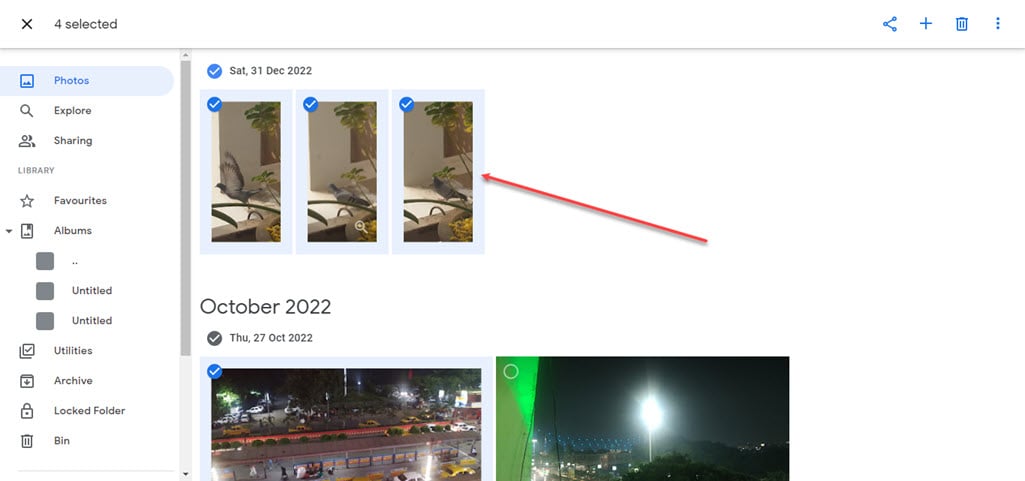
Step 1: Open the Google Photos on your desktop and hover over the date; a tick mark will appear beside the date, click on it.

Step 2: All the images on that date will be selected, and the tick mark on them will become blue.

Select all using the Shift key
Here are the steps to select all photos on the desktop using the Shift key:
Step 1: Hover over one of the images that you want to select; a tick mark will appear at the top right corner of the photo, click on it.

Step 2: Press and hold the shift button and scroll down, the images will turn blue which means they are selected when you reach the last photo that you want to select, click on it and all the images from your first click to the last click will be selected.
Also read: How to delete Google Photos account?
How to select all on Mobile?
On mobile, you select all photos in Google Photos using the two methods explained below.
Select all using the date range
Here are the steps to select all photos on mobile using the date range:

- Open the Google Photos on your phone and tap on the tick mark beside the date.
- All the images of the particular date will be selected.
Select all using tap and drag
Here are the steps to select all photos on mobile using tap and drag:

- Long press on one of the images you want to select and then drag your finger through all the photos you want to select.
Also read: How to remove photos from Google Business?