
Google Messages is one of the many services offered by Google. It is a web version of the Messages app that you often use on Android.
This service lets you send or receive messages on your computer, akin to Telegram and WhatsApp web.
In this article, we’ll explain how you can easily use messages.google.web or Google Messages.
Getting started with Google Messages
It is quite easy to use Google Messages on your computer. It takes only a few seconds, and then you’re ready.
Head to this website: messages.google.com to open the Google Messages interface on your computer and then follow the instructions given below:
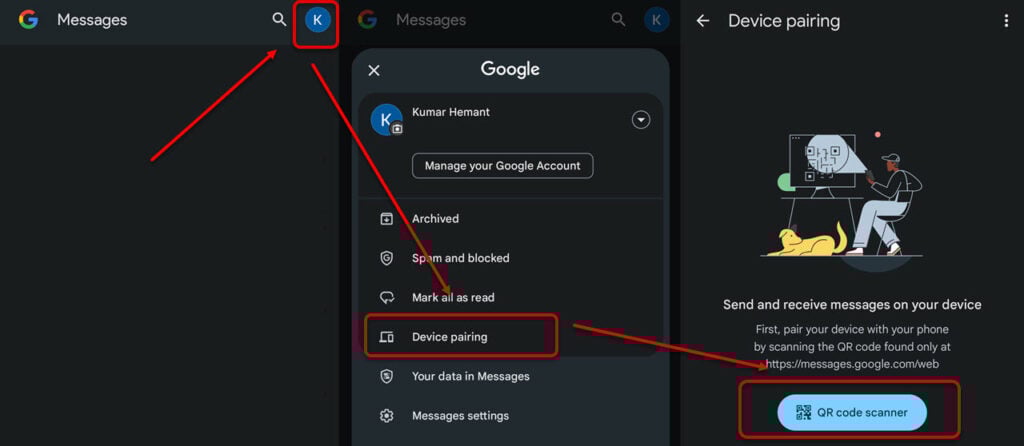
- Open the Messages app on your mobile and tap your profile icon at the top right of the screen.
- Next, tap on Device pairing.
- Tap on the QR code scanner to start the scanning. Point your mobile camera towards the QR code on the Google Messages website.
That’s it. When you finish the scan, you can now access your Messages app on your computer.
Also read: Where is the trash can on my Android?
Features and benefits of Google Messages
Google Messages or messages.google.web offers plenty of features and benefits. In this section, we’ll discuss some of them:
- Easy synchronisation between your mobile and computer.
- Supports various messaging services, including SMS, MMS, and RCS messages, including rich media content such as images, videos, location, and contact cards.
- Text suggestions are supported.
- End-to-end encryption
- Google Assistant integration
Also read: Why is my phone so slow?
Limitations and requirements for using Google Messages
Although syncing your mobile and computer to use Google Messages is easy, the platform has limitations.
For one, you can use only one linked device at a time when using Google Messages on the web. For example, you may have two laptops or computers where you have synced your mobile’s Messages app. But you can only use Google Messages on one of the two computers.
Another limitation pertains to the Message app itself. To run the Messages app, you must have Android 5.0 or above. Also, update the app if you haven’t done it in a while.
One common issue you can face while using Google Messages on the web is that if you have too many tabs opened on your computer, you will have to skim through all the tabs to reach the right tab.
You need a constant internet connection if you want to use Google Messages on your computer. If the connection becomes unstable or drops, then you won’t be able to use it.
Keeping in mind these small limitations, you can use messages.google.web service seamlessly on your mobile and computer.
Also read: What is Power Automate in Windows 11?


