Many gamers who use Steam to play games on their Windows 10 or 11 computers sometimes encounter a problem. The problem is that it doesn’t stop running even when they try to close a game in Steam. This can be frustrating because games use up a lot of computer power, and there are other things people need to do on their computers, too.
In this article, we have discussed the causes of the Steam game won’t stop running issue and a few ways to help you fix the issue.
Why won’t the game stop running?
Below, we have discussed a few possible reasons that might be causing the Steam game won’t stop running even after it’s closed issue.
- Close the launcher.
- The game files are corrupted.
- Interference by the in-game overlay.
- The closing process is slow.
Also read: How to fix Steam game awards failed to load this broadcast?
How to fix the issue?
If the game runs even after you close it on your Windows PC, we have explained a few ways to help you fix the issue.
Use Task Manager
The first and simplest step to tackle this issue is to open the Task Manager to close the running game if you don’t see the game in the Task Manager, then try searching for Steam.exe and close it. To close the steam from the Task manager, follow the steps below.
Step 1: Press your keyboard’s Ctrl + Shift + Esc keys to open the Task Manager.
Step 2: In the task manager, under the Processes tab, find Steam, select it, and click on the End Task button at the bottom right corner of the screen.

Step 3: If this doesn’t work, you can try finding the gameoverlayui.exe file in the same processes tab and close it.
Verify the game files
Corrupted or missing game files can cause games to misbehave. To ensure your game’s files are intact, follow the steps below.
Step 1: Launch Steam and click on the Library tab. Then, Right-click on the game that is not closing, and from the drop-down menu, click on Properties.

Step 2: Find the Local Files and click Verify Integrity of Game Files.
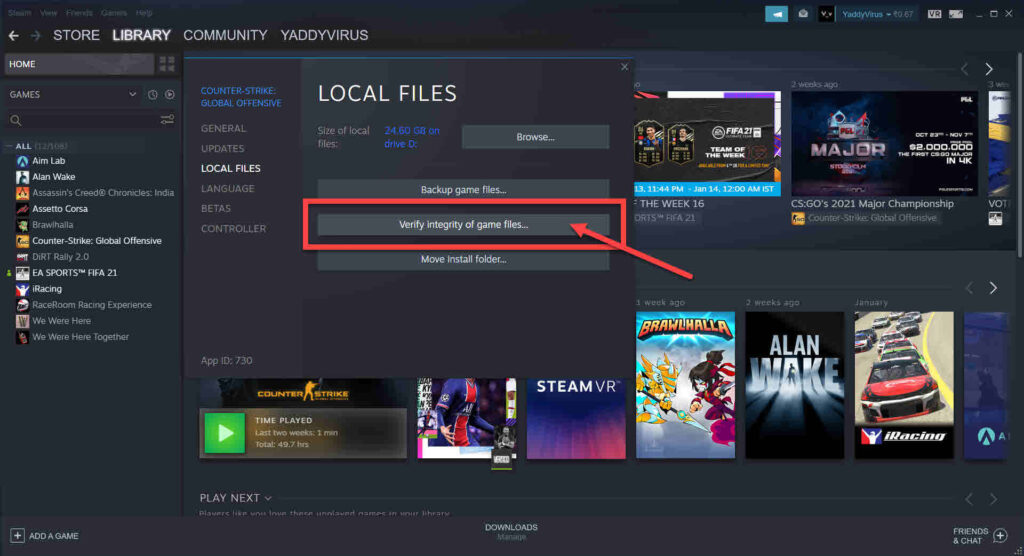
It will re-install those missing files and eventually fix the error caused by them.
Also read: Windows Network and Sharing Center explained
Disable Steam overlay
Sometimes, Steam’s in-game overlay can interfere with the proper closure of a game. You can disable it for a specific game by following these steps:
Step 1: Launch Steam, then click on the Library tab.

Step 2: In the Library, right-click on the game that is not closing and then click on the Properties option in the dropdown menu.

Step 3: In the General tab, uncheck the Enable the Steam Overlay while in-game option.

Use SSD
Hard drives, or HDDs, cost less than SSDs, but for things like playing games that need a lot of power, it’s better to use SSDs. SSDs are fast at reading and writing information, making games run much smoother. This includes when you’re starting and stopping games on Steam.
Contact game support
A few people on Reddit discovered that certain games, like Elden Ring, don’t close quickly. It seems like there’s a problem that needs fixing. These users said they could still hear the game’s music even after they closed the game and Steam. Maybe you’re experiencing something similar.
You can ask other gamers on Discord or Reddit to see if they have the same issue. If they do, consider contacting the game’s support team or checking its community forums on Steam. They may have specific solutions or patches for the problem you’re encountering.
Also read: Renewed vs Refurbished: Brief Comparison