
Many users have faced issues while trying to log in to their accounts on their PCs. The system became slow for some users, and for some, it froze. After a restart and entering the password to log into their account, the error message says ‘Group Policy Client service failed the logon: Access denied’ and takes them back to the login screen.
This article discusses the causes of the group policy client service failed to sign in error and a few ways to help you fix the issue.
Causes of failed to sign in error
Below, we have mentioned a few possible reasons that might be causing The group policy client service failed to sign in error.
- Issues with profile.
- Issues with the group policy.
- Registry keys might be missing.
Also read: How to make Windows 11 look like Windows 10?
How to fix the issue?
If you are encountering The group policy client service failed to sign in error while logging in to your account, we have explained a few methods that might help you fix the issue below.
Delete the NTUSER.DAT file
The NTUSER.DAT file is created by Windows and holds all the account settings and customisations specific to a user’s account. Every user has their individual NTUSER.DAT file stored in their user profile. To delete the NTUSER.DAT, follow the steps below.
Step 1: Press the Windows + E keys to open Windows Explorer.
Step 2: In the address, copy and paste C:\Users and hit Enter.
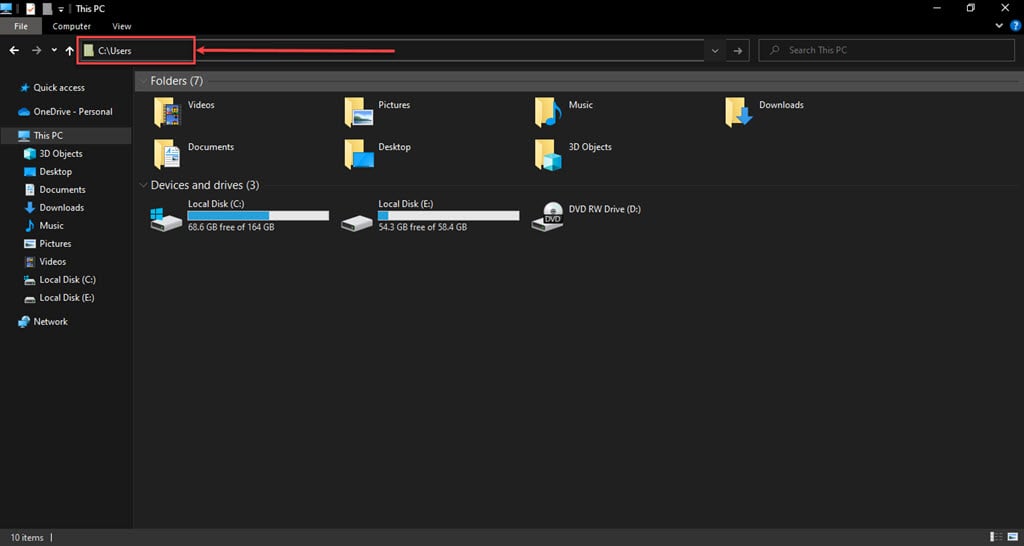
Step 3: Double-click on the user account that is facing the issue.

Step 4: Delete the NTUSER.DAT file. After that, restart your PC and see if the problem is resolved.

Restart the Group Policy service and reset Winsock
This issue is usually caused by changes in the group policy, so resetting these services might resolve the issue. To reset the group policy and reset the Winsock, follow the steps below.
Step 1: Press the Windows + R keys to start the Run dialogue box.
Step 2: In the Run, type Services.msc and hit Enter.

Step 3: In the service window, right-click on the Group Policy Client and then in the dropdown menu, click on the Properties option.

Step 4: In the properties window, change the Startup type to Automatic, then click on the Start button, after that click on Apply and then the OK button.

Step 5: To reset the Winsock, run the command prompt as an administrator. Type cmd in the Windows search and click on the Run as administrator option in the menu on the right side.
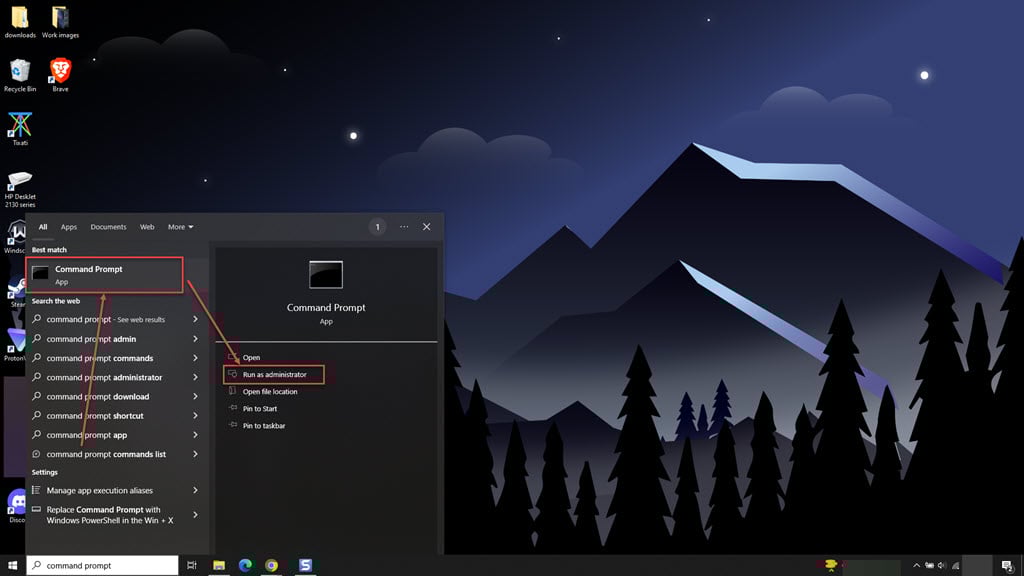
Step 6: In the command prompt, type the command netsh winsock reset and hit Enter.

Step 7: After the process is complete, restart your PC and check if the problem persists.
Edit the registry
It is possible that after a system update, some of the registry keys might be missing. To edit the registry, follow the steps below.
Step 1: Press the Windows + R keys to start the Run dialogue box.
Step 2: In the Run, type regedit and hit Enter.

Step 3: Copy and paste Computer\HKEY_LOCAL_MACHINE\SOFTWARE\Microsoft\Windows NT\CurrentVersion\Svchost in the address bar of the Registry editor window and hit Enter.

Step 4: In the Svchost folder, on the right side, find the Multi-String value named GPSvcGroup. If the value is present, then you can skip this method, if not, then follow the next step.
Step 5: In the same folder, right-click on the black space and click on New, then click on the Multi-String Value option and then rename the file to GPSvcGroup.

Step 6: Double-click on the newly created GPSvcGroup file type GPSvc in the value data box, and then click on the OK button

Step 7: Again, right-click on the space, then click on New click on the Key and then rename the key to GPSvcGroup.

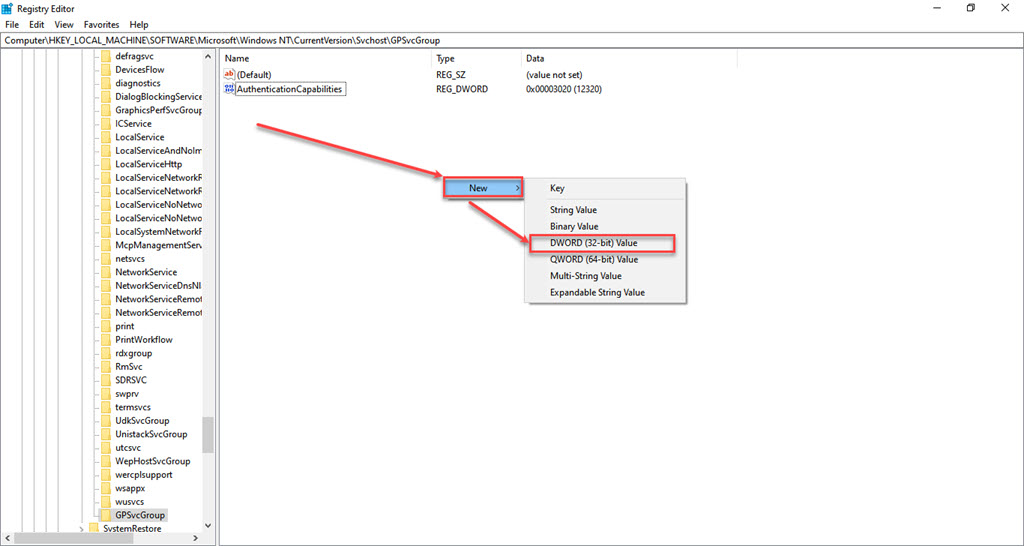
Step 8: In the newly created GPSvcGroup folder, right-click on the empty space and click on New then click on DWORD (32-bit) Value and rename it to AuthenticationCapabilities.

Step 9: Double-click on the AuthenticationCapabilities file and then choose Decimal under the base section after that, enter the value 12320 in the Value data box and then click on the OK button.
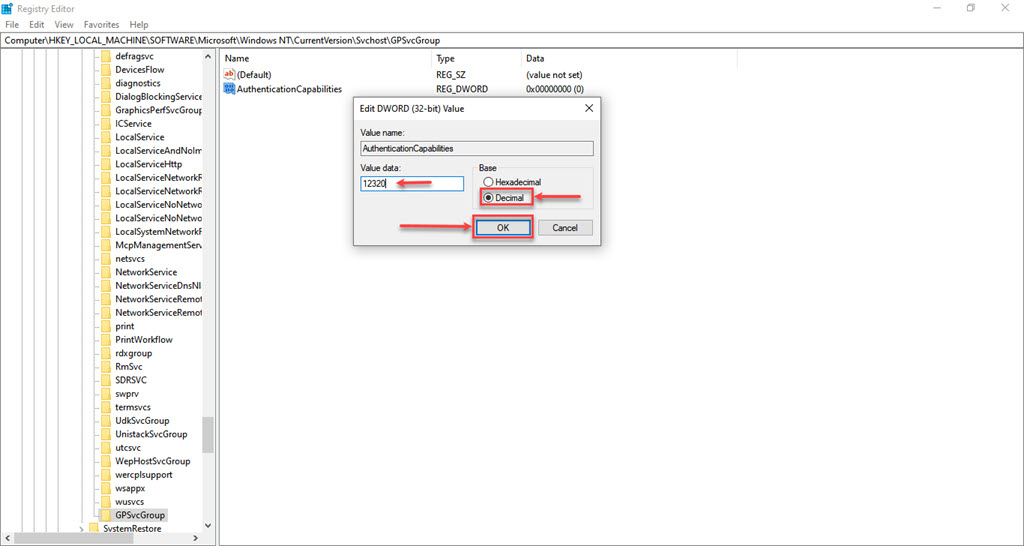
Step 10: Again, right-click on the space and click on New, then click on DWORD (32-bit) Value and rename it to CoInitializeSecurityParam.
Step 11: Double-click on the CoInitializeSecurityParam file, enter the value 1 in the Value Data box, and click the OK button.

After you are done, restart your PC.
Perform a System Restore
If none of the above methods works for you and you cannot log in to your account, restoring a system is your last resort. System restore takes your PC to a point where it works without the error. To perform a system restore, follow the steps below.
Step 1: Type System Restore in the Windows search and click on the Recovery option.
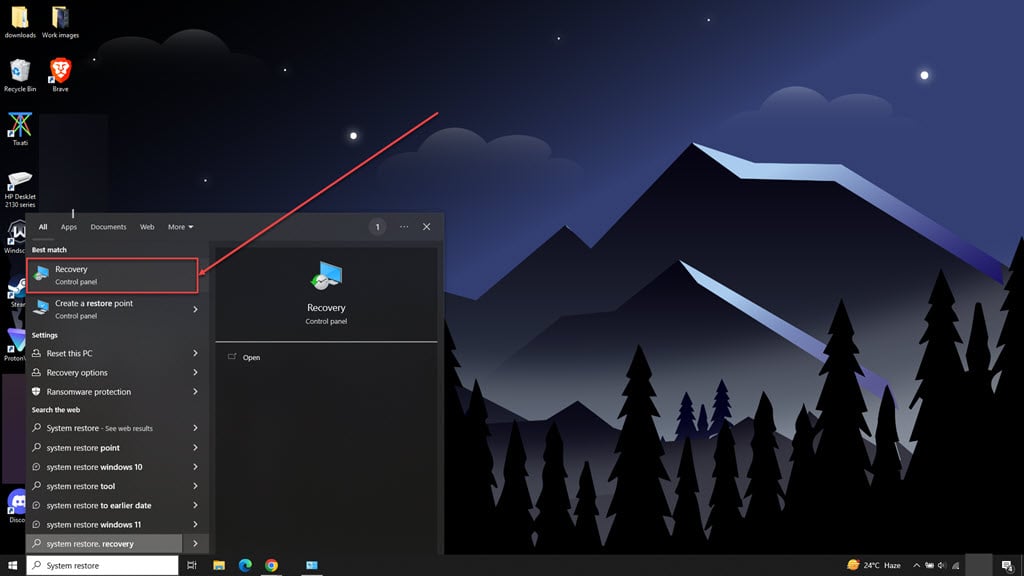
Step 2: In the new window, click on Open System Restore.

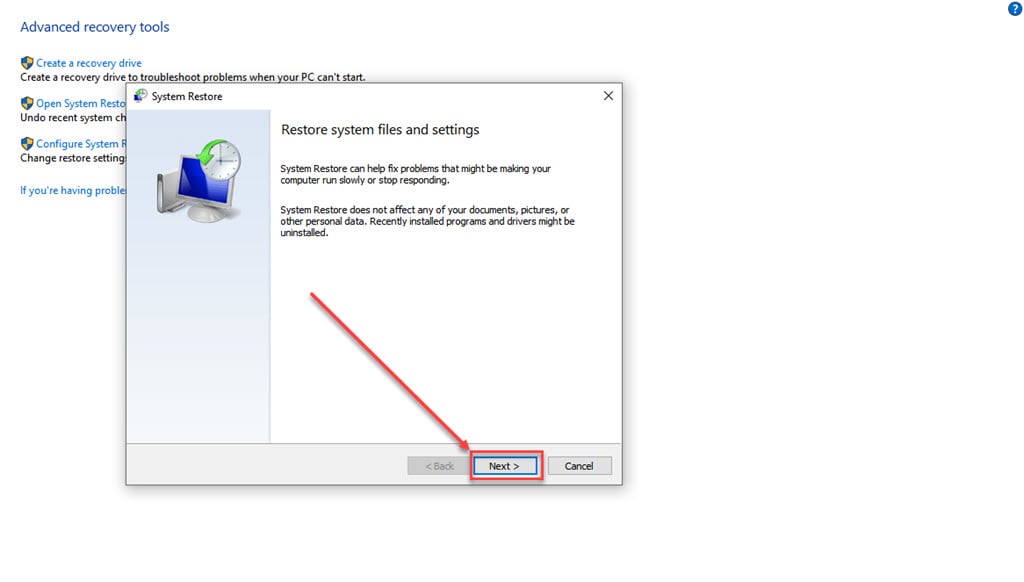
Step 3: In the System Restore window, click on the Next button.
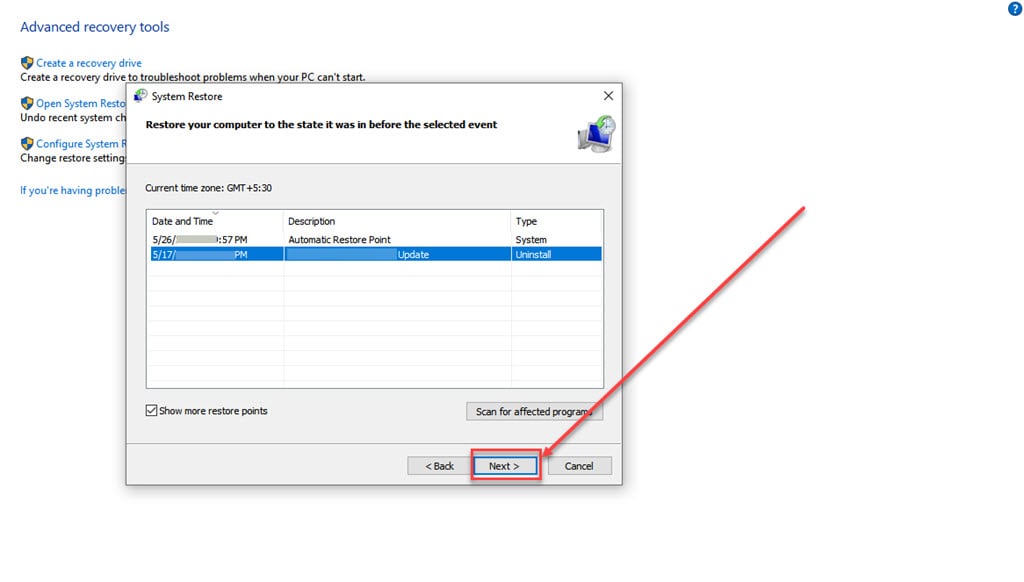
Step 4: Select the store point from the options and click on the Next button.
Step 5: Click on the Finish button.
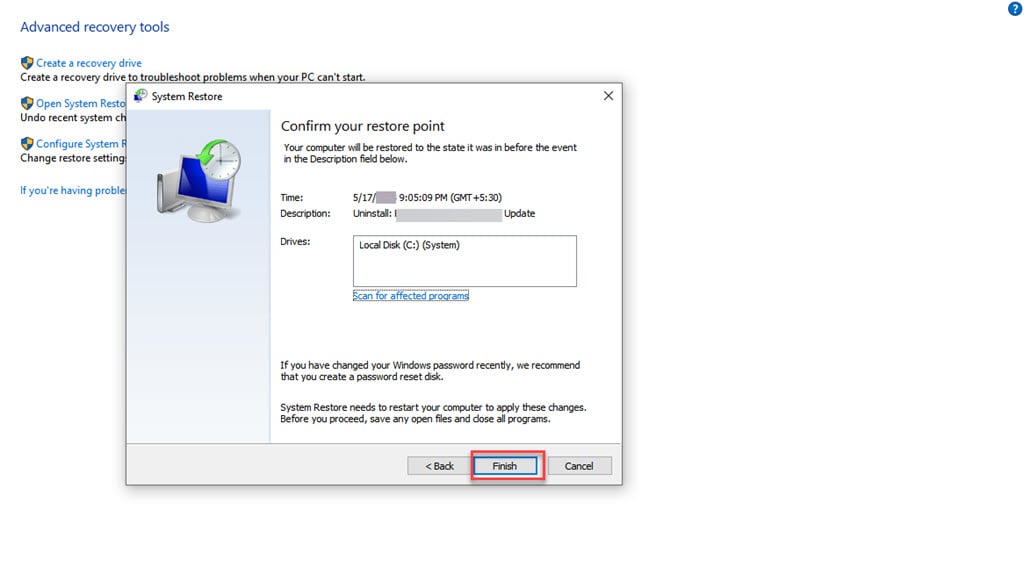
Let the system restore process complete.
How to perform a system restore from the login screen?
If you cannot log in to your PC, then you cannot perform any of the above-mentioned methods, there is a way to system restore from the login screen. Follow the steps below to perform a system restore from the login screen.
Step 1: While on the login screen, Press the Shift key and click on the Shutdown button available on the bottom right corner of the screen, and then in the menu, click on Restart.
Step 2: Windows will restart, and a choose an option menu will appear; in the menu, click on the Troubleshoot.

Step 3: Now, click on the Advanced options.
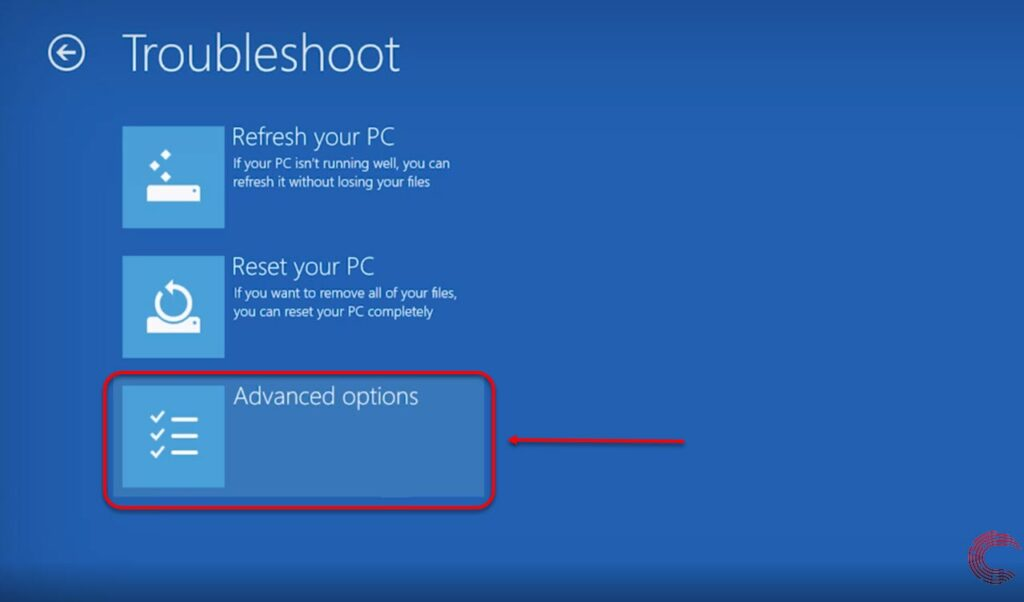
Step 4: In the Advanced options, click on the System Restore.
Step 5: Choose a date and time from the list for the system to restore. You will lose the programs that you installed after the date you are restoring your PC, but your data will stay safe.
Also read: What is APC index mismatch in Windows 10? Quick Fix





