A mouse is like a navigator for your computer. While keyboard shortcuts and inputs can handle many tasks, using a mouse often makes things smoother and quicker. Yet, some Windows 10 users find their mouse lagging while using their computer.
In this article, we have discussed the causes of mouse lagging in Windows and seven methods to help you fix the issue.
Below we have discussed:
Also read: How to check mouse DPI in Windows 11?
What causes mouse lags?
Various reasons might be causing mouse lags on your PC, and they are mentioned below:
- Temporary issues with the mouse.
- Dirt covering the IR sensor.
- Issues with the USB port.
- Outdated mouse driver.
- Interference by other processes on PC.
How to fix the issue?
Here are seven ways to help you fix the issue:
Check your Mouse
For a wireless mouse, replace the old batteries with fresh ones. If you’re using a wired mouse, disconnect it from your computer and then reconnect it. Test with another mouse that you’re sure works, and if it still doesn’t function, try plugging it into a different port on your computer.
Clean your mouse
If you notice that your mouse lags from time to time or experiences occasional pauses, it might be because there’s dirt on the IR sensor beneath the mouse. In case you’re experiencing lag while scrolling, it could be due to dirt inside the scroll wheel.
Try a different USB port
Even if the problem doesn’t originate from your mouse, there might be an issue with the USB port it’s connected to. Especially with the introduction of newer USB 3.0 ports, there’s a chance you might have plugged your mouse into the wrong port. Not every computer accessory works seamlessly with USB 3.0, so it’s essential to check by trying a USB 2.0 port.
It is also possible that the USB port itself might be damaged. To confirm, test it with other accessories like a keyboard or a USB flash drive.
Update the mouse driver
You can update your mouse driver in two ways. First, go to the Device Manager, locate your mouse, and allow Microsoft to search the internet for the most recent driver version. Alternatively, the more effective method is to visit the official website of your mouse’s brand and find and download the driver specifically designed for your mouse model. Here are the steps to update it from the device manager:
Step 1: Press the Windows + X keys and then in the menu click on the Device Manager.
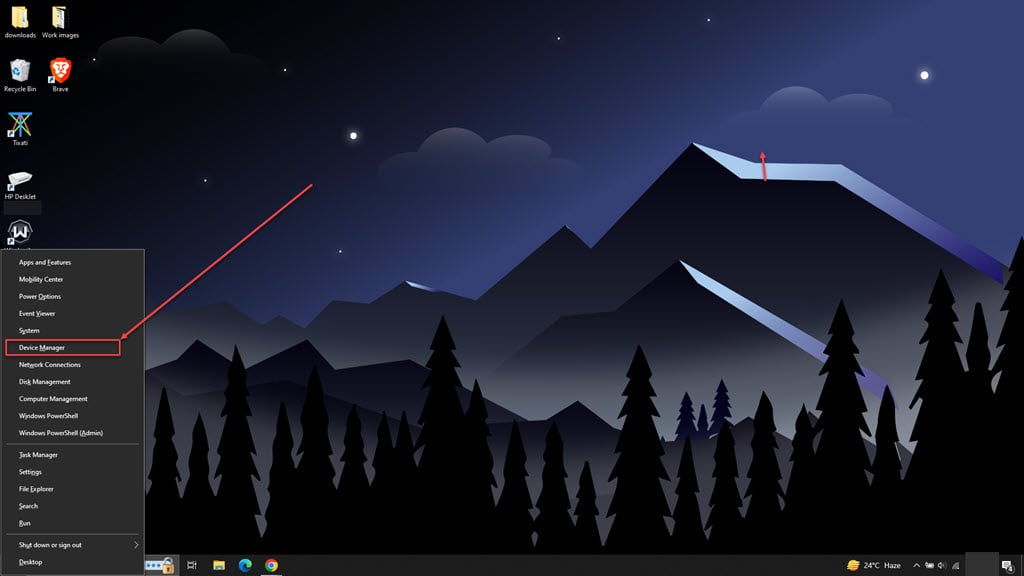
Step 2: In the device manager, expand the Mice and other pointing devices and right-click on the mouse connected to your PC.

Step 3: In the drop-down menu click on the Update driver option.

Step 4: In the new window, click on the Search automatically for drivers option.

Disable Scroll inactive windows feature
In Windows 10, there’s a feature that lets you scroll through inactive windows just by hovering your mouse pointer over them. However, many users find that this feature can sometimes create problems with the mouse. Here’s how to disable it:
Step 1: Press the Windows + I keys on your keyboard to open the Settings app and click on Devices.

Step 2: In the sidebar, click on Mouse and then on the right side turn the toggle off below Scroll inactive windows when I hover over them.

Terminate the Realtek Audio process
The Realtek audio card may sometimes interfere with the mouse and cause lagging issues. Terminate the Realtek audio process from the task manager and check whether the mouse still lags. Here are the steps to do that:
Step 1: Press the Ctrl + Shift + Esc keys to open the Task Manager.
Step 2: Under the Processes tab, scroll down, find and select Realtek audio service and then click on the End Task button at the bottom right corner of the screen.

Disable Fast Startup
Many individuals use this Windows 10 feature to enhance the system’s startup time. However, it sometimes triggers unpredictable mouse behaviours, so turning it off can be a helpful troubleshooting step. Here’s how to do it:
Step 1: Right-click on the Battery icon in the System Tray and then in the menu click on the Power Options.

Step 2: In the sidebar, click on the Choose what the power buttons do option.

Step 3: Click on the Change settings that are currently unavailable.

Step 4: Now, uncheck the box beside Turn on fast startup (recommended) and then click on the Save changes button.

Also read: Why is the Touchpad not working on your Windows 11 laptop? Quick Fix