
Photo: Primakov / Shutterstock.com
Have you sent a text by mistake and now want to unsend it on Android? We all have done something similar at one point in our life. Maybe the text had a typo, or you selected the wrong person to text or wrote the wrong text.
In all the cases, wouldn’t it be great if you could unsend the text on Android? There’s some not-so-great news for you. It is difficult to reverse the text message you sent on Android.
For one, unlike some social media platforms and messaging services, you cannot delete the text message after pressing the ‘Send’ button, as the text message usually uses your cellular network for delivery. So it is nearly impossible to recall it.
However, that being said, don’t be discouraged, as in this article, we’ll present some tips and tricks that will help you to unsend or at least pause the text message from being delivered to the other party.
Method 1: Unsend a text message on Android by turning on the Aeroplane mode

One method that you can try to unsend a text message on Android is to turn on the Aeroplane mode as soon as you hit the ‘Send’ button.
Usually, we immediately realise that either the text is wrong or it is being delivered to the wrong person. As soon as this realisation hits you, immediately swipe down from the top and then turn on the Aeroplane mode on your Android.
In the aeroplane mode, only selected people can message or call you, giving you more control over your phone.
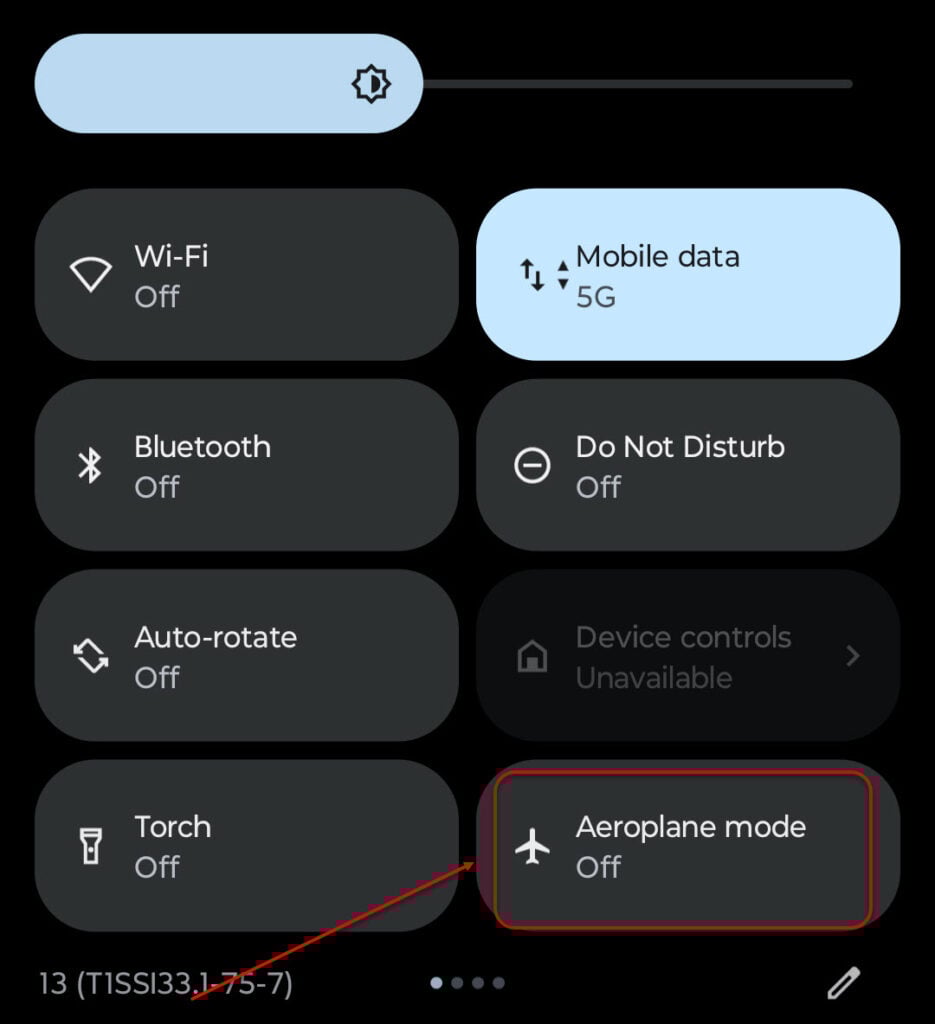
When you turn on the Aeroplane mode, all the network activity on your Android phone will stop. That includes Bluetooth, WiFi, Cellular data, and GPS. As your text message uses cellular data and has been disrupted, the text message that you sent will not be delivered.
There’s only one catch here. Turn on the Aeroplane mode as quickly as possible because the cellular network is good if a message gets delivered in a fraction of a second.
Ultimately, we can only say that it depends on how fast you can do it.
Also read: Why are my calls going straight to voicemail on Android?
Method 2: Turn off your Android device to unsend a text

The second method to unsend a text on Android is to turn off your mobile phone.
You will have to be quick here, too. Remember, a text takes merely a fraction of a second to deliver.
Press the power button to turn off your mobile phone and hit Power off. Alternatively, you can remove your mobile’s battery if your device allows you to do so because there are many brands where you cannot remove the batteries.
Whatever you do, do it quickly. After turning off your mobile, please wait a few seconds and turn it back on. Now, go to the text message and see ‘Failed’ or some other message. This means that the mission was successful.
On the other hand, if you see something like ‘Delivered’, you were not fast enough to stop the text message.
Also read: How to unsend a reaction on Instagram?
Method 3: Use a third-party app
Many third-party apps claim to allow you to unsend a text message on Android. Interestingly, these apps claim that you can unsend a text even if the other party, meaning the recipient, doesn’t have these apps installed on their mobile phones.
However, we advise caution while using such apps as many of these apps can be malicious or will provide less than what they promise. Moreover, your mobile will also be in danger if you use these apps.
In conclusion, to unsend a text message on Android, you can quickly turn off your mobile or turn on the Aeroplane mode.
Also read: Unsend iMessage not working: Quick Fix
Frequently answered questions (FAQs)
Let us head to some FAQs on the topic:
Can I unsend a text already sent?
No, you cannot unsend a text on Android that you have already sent. Although many apps claim you can accomplish something like that. However, we advise you to refrain from using such apps.
What are some alternatives to text messages?
You can use many messaging services on the Play Store or other online app stores. Services like WhatsApp, Telegram, and Signal give you more control over your messages.
Also read: How to unsend a Snap?


