
Photo: Rafapress / Shutterstock.com
Many users have reported that their calls are going straight to voicemail on Android. The issue, although not rampant, can affect users deeply, especially if they are expecting some important calls.
If you are one of those users, don’t fret, as in this article, we’re here with some tips to resolve this issue.
Check the aeroplane mode
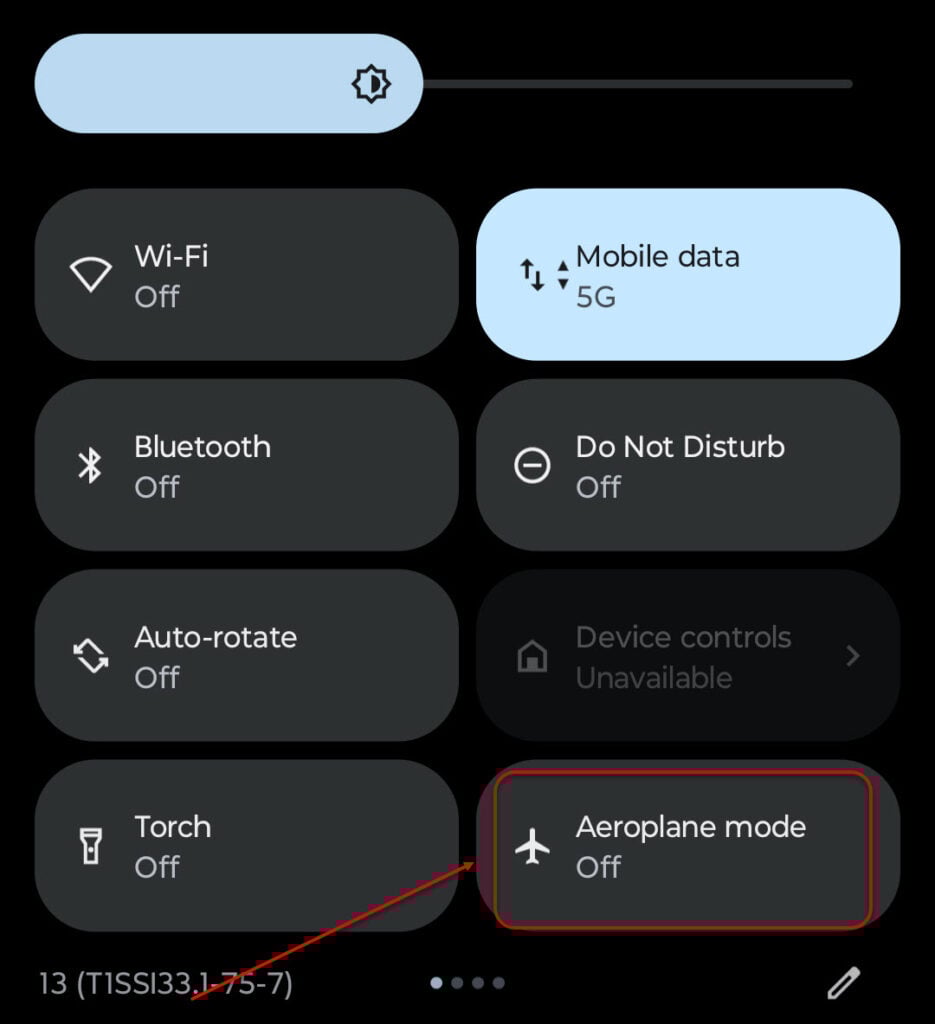
Sometimes, we turn off the aeroplane mode and forget to turn it back on. This disrupts many cellular services, including the call.
Swipe down from your fingers to check whether the aeroplane mode is on. If not, move on to the next steps. If the aeroplane mode is on, turn it off and wait for the call to arrive on your Android mobile phone.
Check your cellular network coverage
If you’re travelling in a remote area where the cellular coverage is bad or unstable, you may encounter issues receiving calls on your Android.
There is no shortcut to fix this issue. Either move out of the area as soon as possible or find a high place to get the cell reception.
If your mobile supports dual SIMs, switch on your other SIM and see if it works.
Also read: How to find your phone number on Android?
Restart your mobile
Sometimes, the simplest solutions are the best ones. Restart your Android device to flush out the corrupt RAM that may cause issues with your calls.
Use this method to fix minor glitches and issues like this one. It is not a sure shot method, but many users have said it works. There is no harm in trying it, as it takes just a few minutes.
Turn off the Do Not Disturb mode
When you turn off the Do Not Disturb mode on your Android mobile, you will get more control over who can call or message while you are busy working. Usually, everybody can message you, but only the starred contacts can call you.

So, if you receive calls on a voicemail on Android, you should turn off the Do Not Disturb feature.
The process is simple: swipe down and tap the Do Not Disturb button. For more control and tweaks, long-press the Do Not Disturb button for more options.
Also read: How to turn off emergency SOS on Android?
Check your blocked number list
It can sometimes happen that you have blocked the number and cannot receive a call from them.
To fix this, you may need to unblock the number first. Head to this article to view blocked numbers on different Android applications.
If you find the blocked number, tap on the cross button before the number to unblock it.
Check your ring volume
Sometimes, it can also happen that your ring volume is so low that you can’t hear it and pick up the phone.
This is a common reason why your calls go straight to Android voicemail.
Here’s how to check and increase the call volume on Android:

- Head to Settings > Sound and vibration.
- Here, set the Ring volume as per your preference. Remember not to keep it too low.
Also read: How to delete Other Storage on Android?
Check your SIM card
If the SIM card has not been properly inserted in the slot, you will face issues with receiving calls on your Android mobile.
To fix this, open the SIM slot on the side of your mobile device and then properly insert the SIM.
Head to this article to understand how to remove a SIM card.
Turn off Bluetooth
Sometimes, connecting a wireless headphone or a speaker via Bluetooth can cause disruptions with the call, prompting the calls to go straight to voicemail on Android.

So, turning off Bluetooth may help. The simplest way to turn off Bluetooth is to swipe down and tap on Bluetooth. If the Bluetooth is already on, you’ll see the blue Bluetooth icon. If the Bluetooth is off, the option will remain dark.
Update your Android OS
One of the most common reasons why calls are going string to voicemail on Android is due to the presence of minor bugs or technical glitches.
To remove these hindrances, we recommend you update your device.
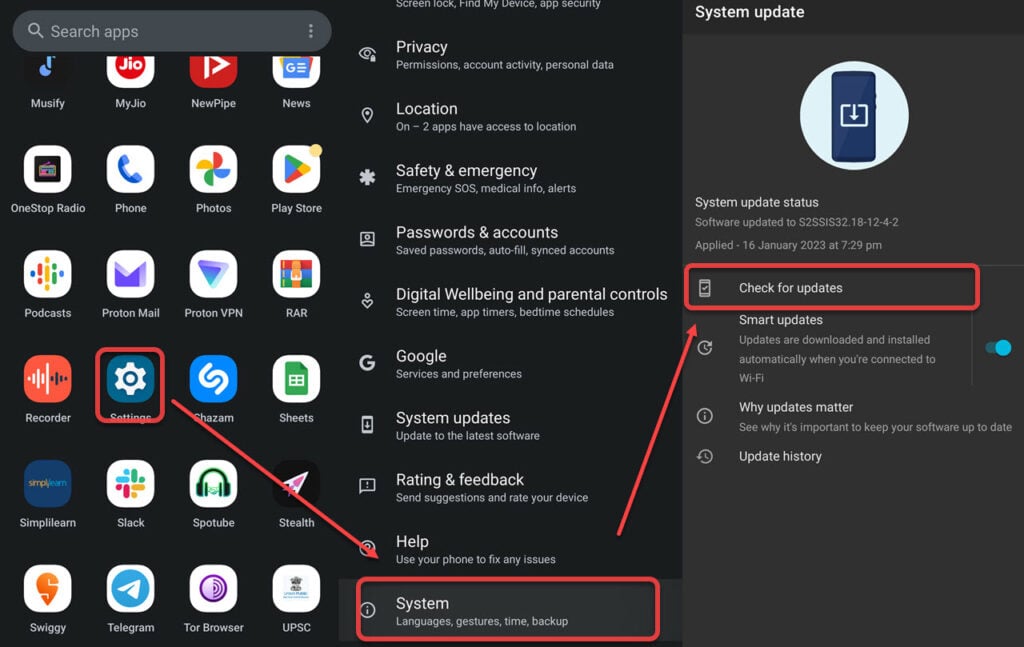
- Head to Settings > System.
- Then tap on Check for updates. If you have any pending updates, you will be notified.
In conclusion, calls going straight to voicemail on Android can be frustrating for some users. Fortunately, the issue is not a major one and can be solved in just a few minutes, depending on the cause of the problem. Follow the steps mentioned above to get your calls directly to you instead of the voicemail.
Also read: How to edit a PDF on Android?


