Google Chrome is one of the most used browsers, but it can sometimes encounter issues. One problem many users encountered was Facebook not working properly on their computer’s Chrome browser. This can be unpleasant, especially for those who love using Facebook on Chrome.
If you cannot open Facebook on Chrome, this article discusses various fixes to help you resolve the issue.
Why is Chrome not loading Facebook?
Many reasons can cause issues and affect the loading process of Facebook on Google Chrome, and they are mentioned below:
- The Facebook server is down.
- Poor internet connection.
- Corrupted browser cache and cookies.
- Outdated browser.
- Interference by browser extensions.
Also read: How to turn off sync in Chrome?
How to fix the issue?
Below are some simple and easy methods that might help you fix the issue.
Check the internet connection
Ensure that your internet connection is stable. Sometimes, a slow or unreliable connection can prevent websites from loading correctly. Check if other websites are loading properly. If they are, the issue may not be with your network, and if they also don’t load, try restarting your router to reset the connection.

Check the server status
It is possible that the problem might not be because of Chrome, Facebook, or your browser settings. Instead, it could be a problem with Facebook’s servers. To check if this is the case, you can visit websites like downdetector or check on Twitter to see if other people are discussing similar issues. If Facebook’s servers are having trouble or are temporarily offline, you might need to be patient and wait until they fix the issue.
Also read: What is the Facebook birthday calendar? How to use it?
Clear the browser cache and cookies
One of the most common reasons for Facebook not loading on Chrome is a corrupted cache or cookies. Over time, your browser stores website data to speed up loading times. However, sometimes, this cached data can become outdated or corrupted, causing issues with site loading.
Check out our article to learn how to clear your browser cache
Check out our article to learn how to clear your browser cookies
Use incognito mode
Another useful tip is to try accessing Facebook in incognito mode. This disables extensions and allows you to browse without cached data or cookies, which can sometimes resolve loading issues.

Also read: Fix: Steam game won’t stop running even after it’s closed
Disable browser extensions
If Facebook loads successfully, the issue is with the Chrome extensions or settings. Browser extensions can be quite useful and increase your productivity. Still, a few extensions can cause conflicts and affect your browsing experience, and a bad extension might be a reason preventing Facebook from loading correctly.
You should try disabling the extension and see if Facebook is loading or not to check which extension is causing the issue.
To know how to disable the extensions, follow the steps below:
Step 1: Click on the Triple-dot menu. In the dropdown menu, hover over Extensions and then click Manage Extensions.

Step 2: Click the Remove button under the extension you want to remove in the Extensions.

Disable the extensions individually and see which is causing the issue.
Update the browser
Outdated browser versions can lead to compatibility issues with websites like Facebook. Check for the update of Google Chrome browser and update it if available.
Check out our article to learn how to update Google Chrome
Reset settings
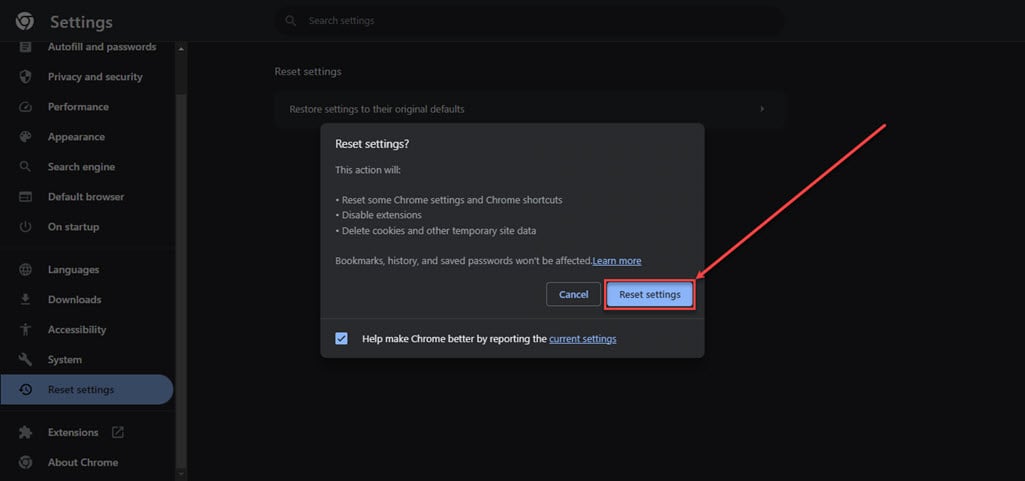
Resetting your Chrome browser has specific effects. It will restore your startup page, new tab page, and search engine to default settings while deactivating all installed extensions. It’s important to note that this action does not erase your browsing history, bookmarks, or saved passwords or uninstall any extensions.
To reset settings follow the steps below:
Step 1: Click on the Menu (triple vertical dots) icon, and then in the dropdown menu, click on Settings.

Step 2: Click on the Reset Settings option in the sidebar; on the right side, click on Restore settings to their original defaults.

Step 3: Lastly, click on the Reset Settings button.
Also read: Bereal not working: Quick Fix
Try another browser
If the above-mentioned methods don’t work, you can use another web browser like Mozilla Firefox, Microsoft Edge, or Brave for a short time to see if Facebook opens there. This will help you know if the issue is only with Chrome or if something else is causing trouble for Facebook.
Flush DNS
If Facebook is not loading even on other browsers, then you should try clearing the DNS cache. To do that, follow the steps below:
Step 1: Type cmd in the Windows search and click on the Run as administrator option.
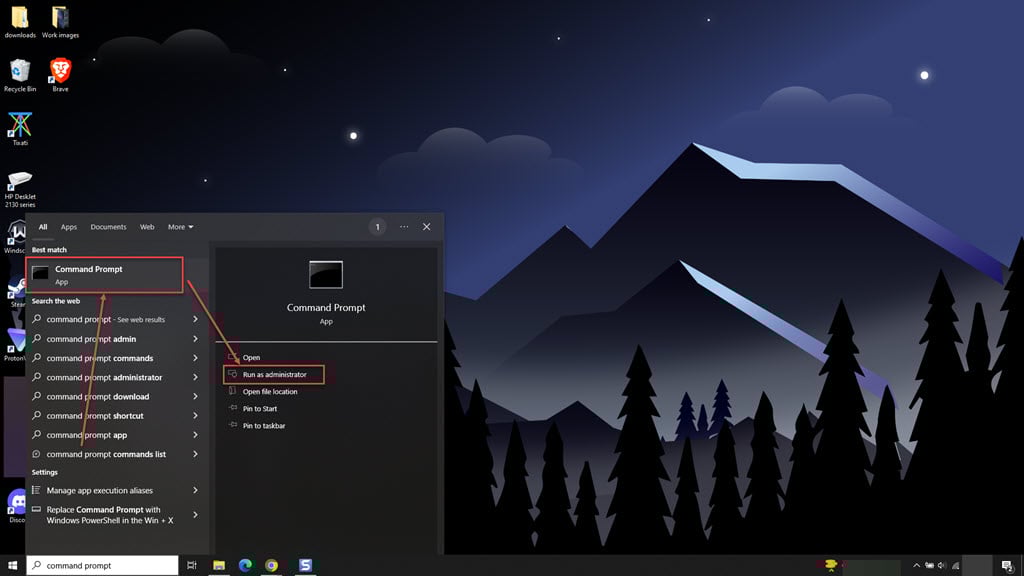
Step 2: In the command prompt, type the command ipconfig /flushdns and hit Enter. It will reset DNS settings to default and also clear the DNS cache.

Also read: What does “Android optimizing app” mean?