Cloudflare plays a crucial role in keeping the internet secure and accessible. However, when its Captcha verification system malfunctions, users can find themselves locked out of websites, facing frustrating access issues.
If you’re experiencing problems with Cloudflare Captcha not working, here’s a YouTube video explaining some effective solutions to resolve the issue:

In this article, we’ll explain five ways to fix problems with Cloudflare Captcha:
Here we've covered:
Scan for malware
One of the most common reasons for Captcha errors is malware on your computer. A malware infestation can disrupt browser functions, including Captcha verification.
To scan for malware on your Windows system, follow these steps:
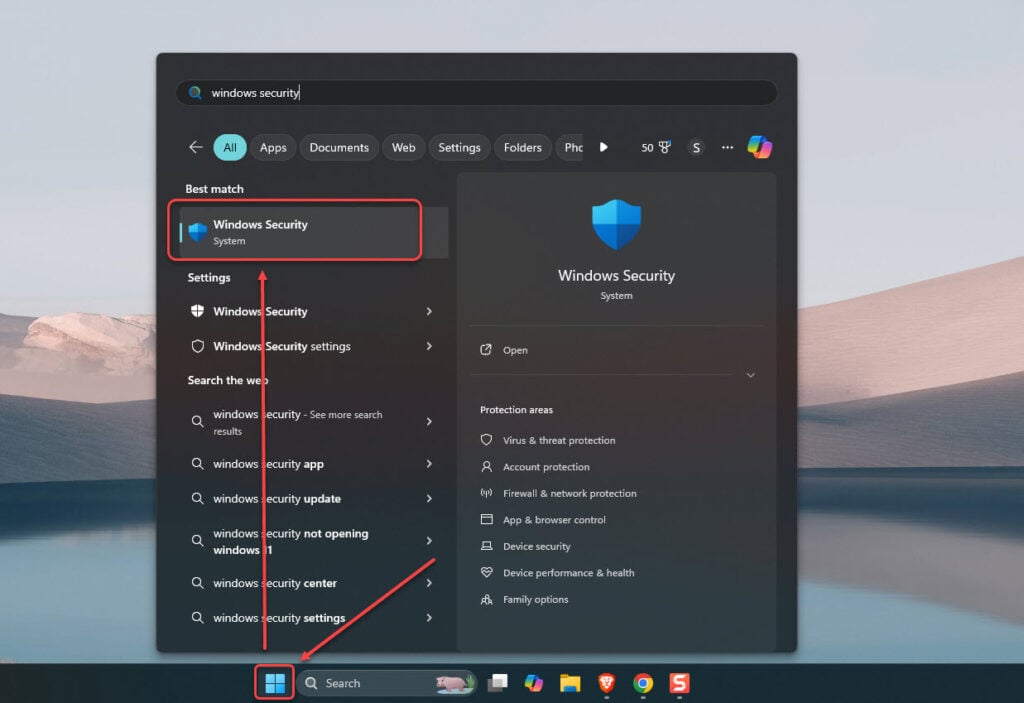
Step 1: Click the Start menu and then search Windows Security (or use your preferred third-party antivirus)
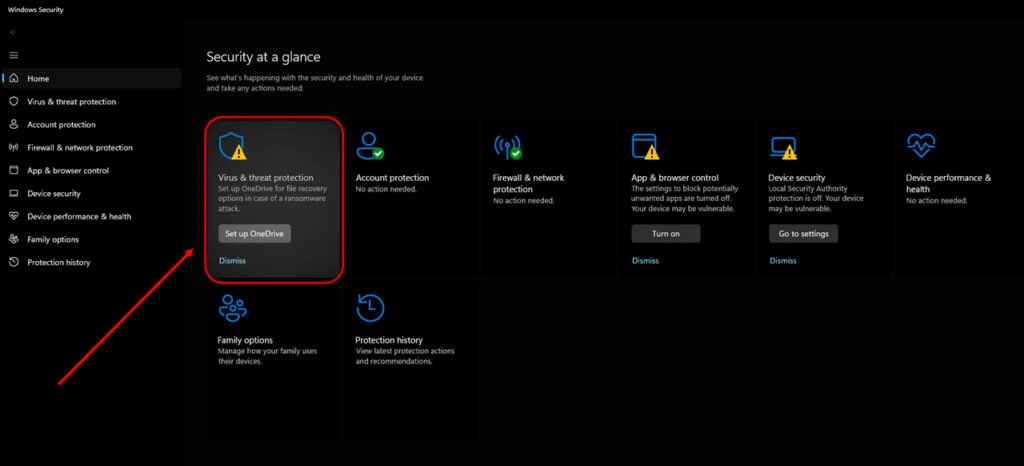
Step 2: Navigate to Virus and Threat Protection.
Step 3: Click on Quick Scan to scan your files. If any threats are detected, follow the recommended actions to remove them.
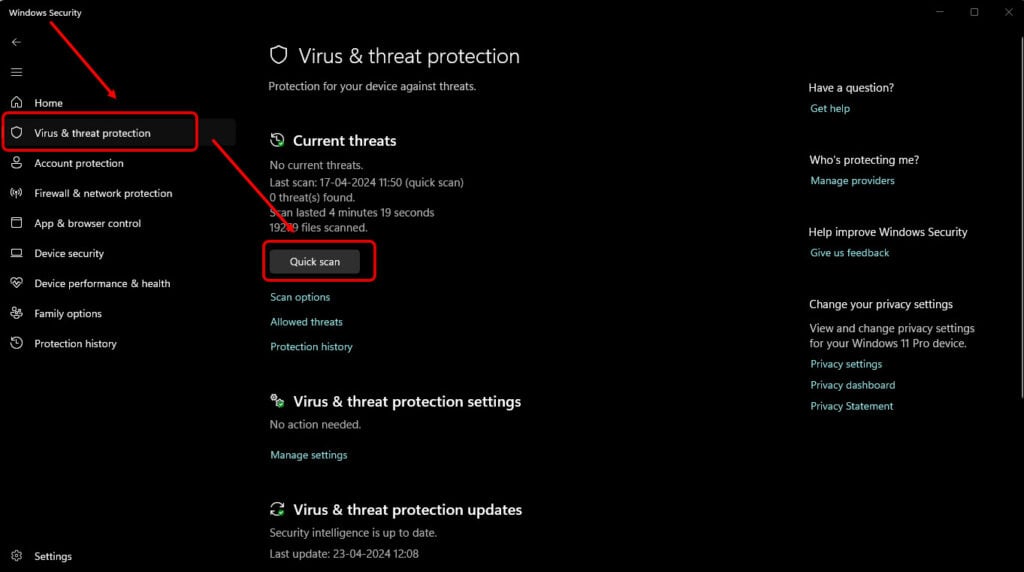
If the persists, consider running a full scan for a more comprehensive check.
Also read: How to fix ‘Failed to Unzip’ in Genshin Impact?
Check and synchronise date and time
Incorrect system date and time settings can interfere with secure website connections, leading to Captcha failures.
To fix this:
Step 1: Press the Windows Key + I to open Settings and search for Time and Language settings.
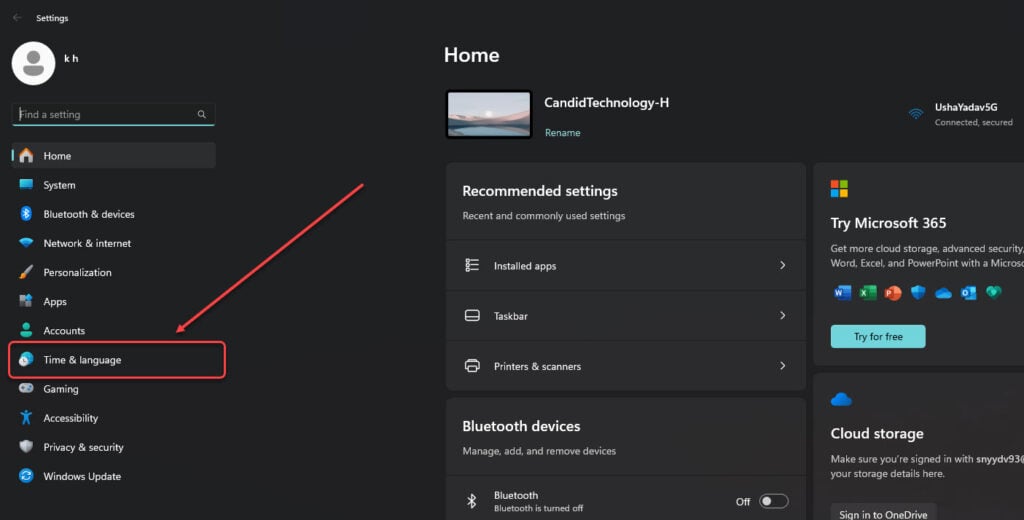
Step 2: Ensure that Set time automatically and Set time zone automatically are enabled. Click Sync Now to update your system time with Windows time servers.

Once your system’s time is accurate, retry accessing the website.
Also read: How to set up macros in G HUB?
Clear corrupt browser data
Cookies, cache, and other temporary files can sometimes cause Captcha verification issues.
Google Chrome
Check out our article to learn how to clear your browser cache
Check out our article to learn how to clear your browser cookies
Microsoft Edge
Check out our article to learn how to clear Edge browser cache
Also read: Fix: Windows 11 Drag and Drop not working
Reset browser settings (Chrome)
If clear browser data doesn’t help to fix the Cloudflare captcha not working issue, resetting Chrome to its default settings might do the trick. Here’s how to do that:
Step 1: Open Chrome settings and search for Reset settings.
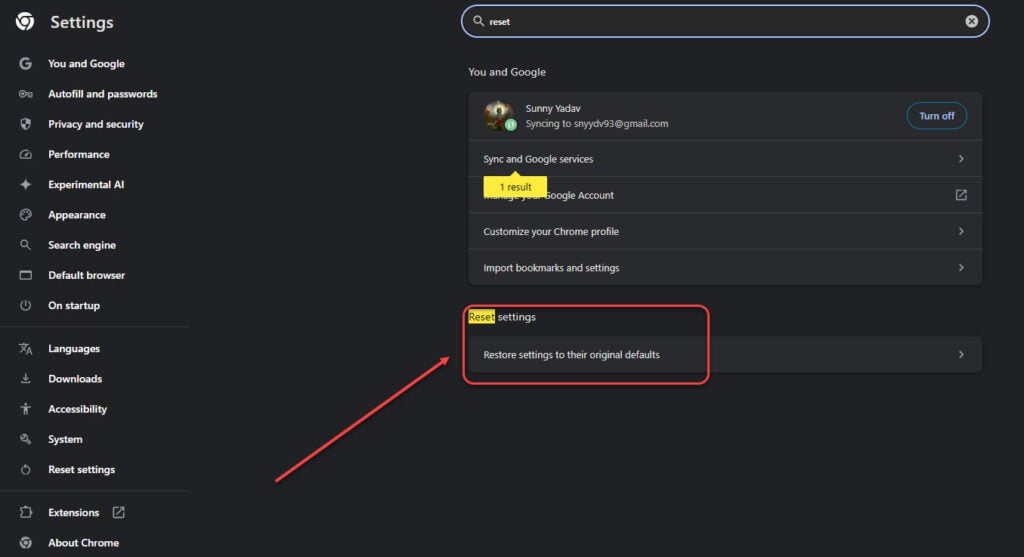
Step 2: Confirm by clicking Reset settings.
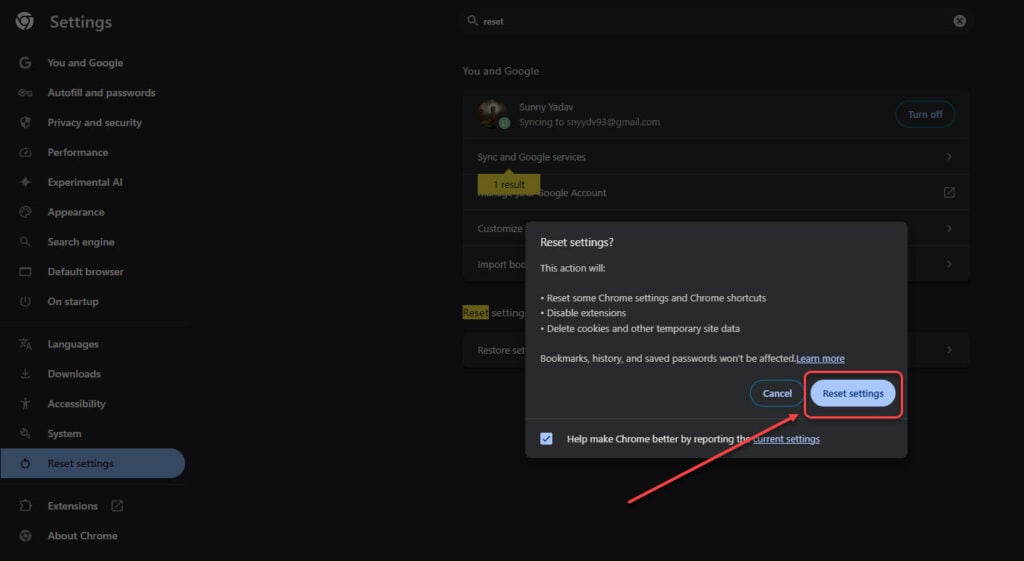
This process resets Chrome settings, disables extensions, and clears temporary site data, which often resolves Captcha-related issues.
Also read: How to change name in Genshin Impact on PC?
Reinstall your browser
If all else fails, reinstalling your browser can provide a fresh start and fix the Cloudflare Captcha not working issue:
Step 1: First, close Chrome completely. Right-click on the Start menu and select Installed Apps. Alternatively, press the Windows key + I and then head to Apps > Installed Apps.
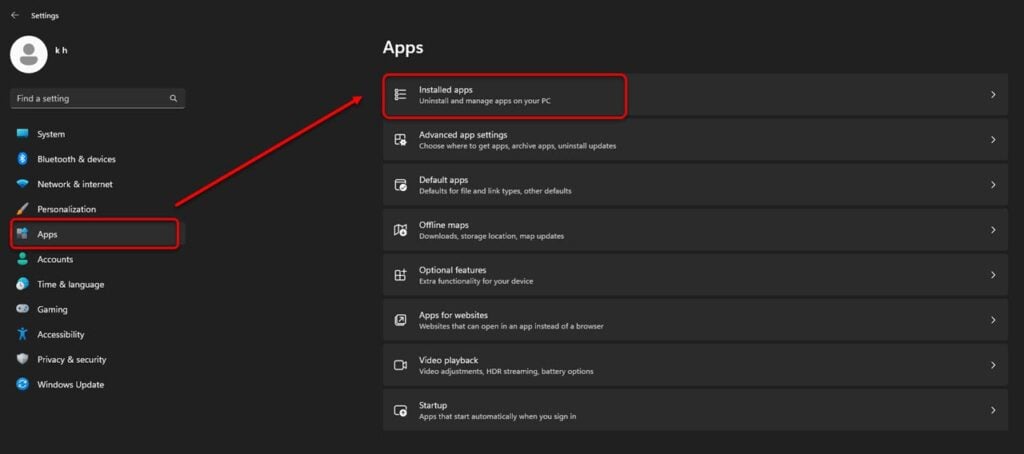
Step 2: Search for Google Chrome, click the three-dot menu, and select Uninstall.
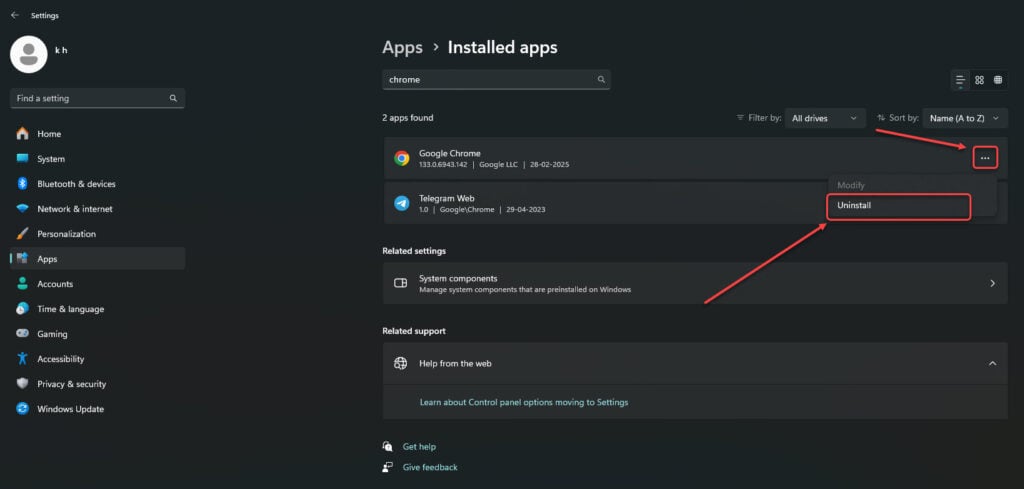
Step 3: Confirm the uninstallation by selecting Uninstall and restart your computer.

Step 4: Open another browser (such as Microsoft Edge) and download the latest version of Chrome from Google’s official website. After that install and set it up again before attempting to access the website.

Using these five fixes, you can easily resolve the Captcha not working issue in Cloudflare.
Also read: How to 1v1 in CS2 (Counter-Strike 2)?