
Photo: Wachiwit / Shutterstock.com
As a Windows user, you should regularly clear the clipboard in Windows 11 for privacy and security reasons.
Clipboard is quite a useful feature that saves everything you have cut or copied in Windows 11, including text, photos, and videos, among others.
To launch Clipboard, press the Windows key + V, then check all the items you have passed in the Clipboard.
In this article, we’ll talk about how to clear the clipboard history in Windows 11.
Clear Clipboard history via the Clipboard tab
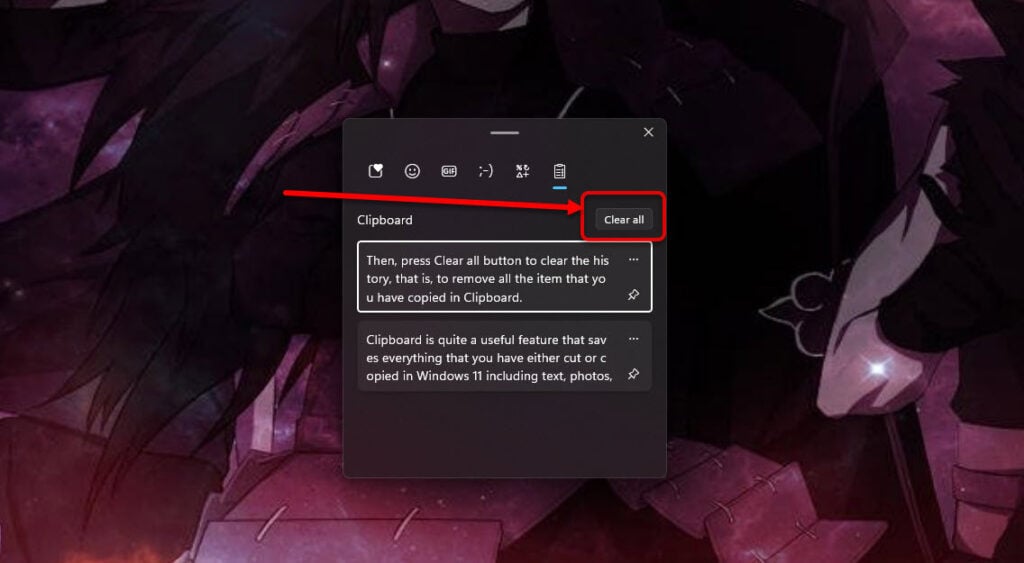
This is the most simple method to clear clipboard history. Press the Windows key + V to open the Clipboard.
Then, press the Clear all button to clear the history, that is, to remove all the items that you have copied in Clipboard.
To individually remove items, press the three-dot button and tap the bin icon.
Also read: Sorry, no manipulations with clipboard allowed: Quick Fix
Clear Clipboard history via the Settings app
You can also remove the saved items on Clipboard by accessing the Settings on Windows 11.
Here’s how to do that:
Step 1: Type clipboard settings in the taskbar search window and press Enter. This will directly take you to the clipboard settings. Another way to reach is via Settings > System > Clipboard.

Step 2: Click on Clear.

Also read: How to check and recover clipboard history on Android?
Clear clipboard history via the command prompt
Finally, you can use the command prompt to clear the clipboard history. It’s easy; you must run only a single command to act.
Step 1: Open the command prompt by typing cmd in the run dialogue box or searching command prompt in the search bar.
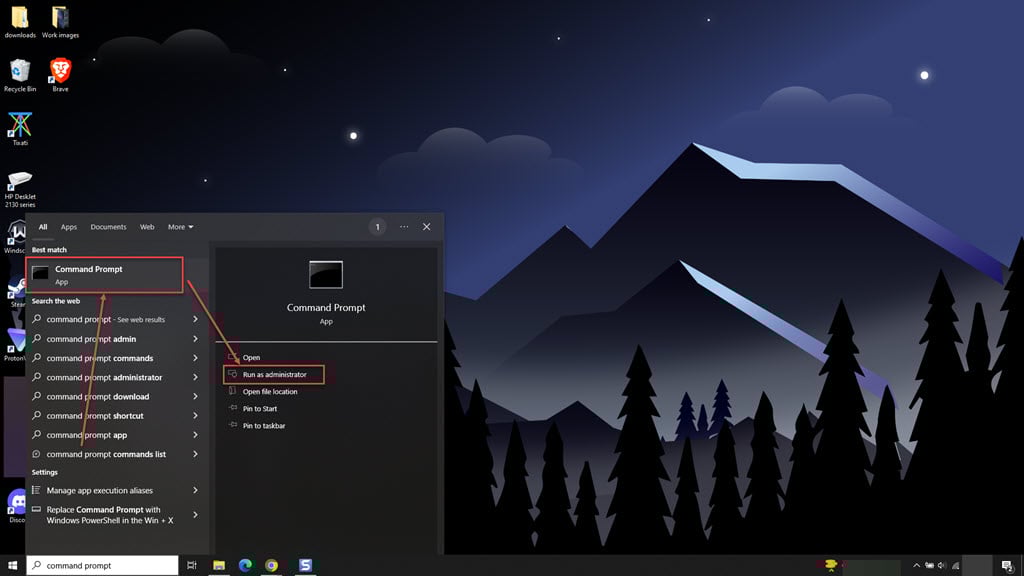
Step 2: Once you have opened the command prompt, type the following command:
echo.|clip
That’s it. When you press Enter, you will have successfully cleared the clipboard history in Windows 11.
Also read: How to clear the clipboard on Android?


