AirTags are small tracking devices you can attach to your belongings that you don’t want to lose. It can be quite handy, especially when travelling to an unknown place
But how to find an AirTag in the car? In this article, we’ll explain how to do that in different scenarios using the Find My app.
We’ll cover three situations:
- You lost your car keys with an AirTag attached
- You forget where you parked your car
- You suspect that an unwanted AirTag is inside your car
Also read: How to refresh your AirTag’s location?
Scenario 1: You lost your car keys with an AirTag attached
This scenario happens most frequently. To search for your lost car keys, you can use the Find My app to get an idea of the general location of the car keys and then play the sound to find the exact location.
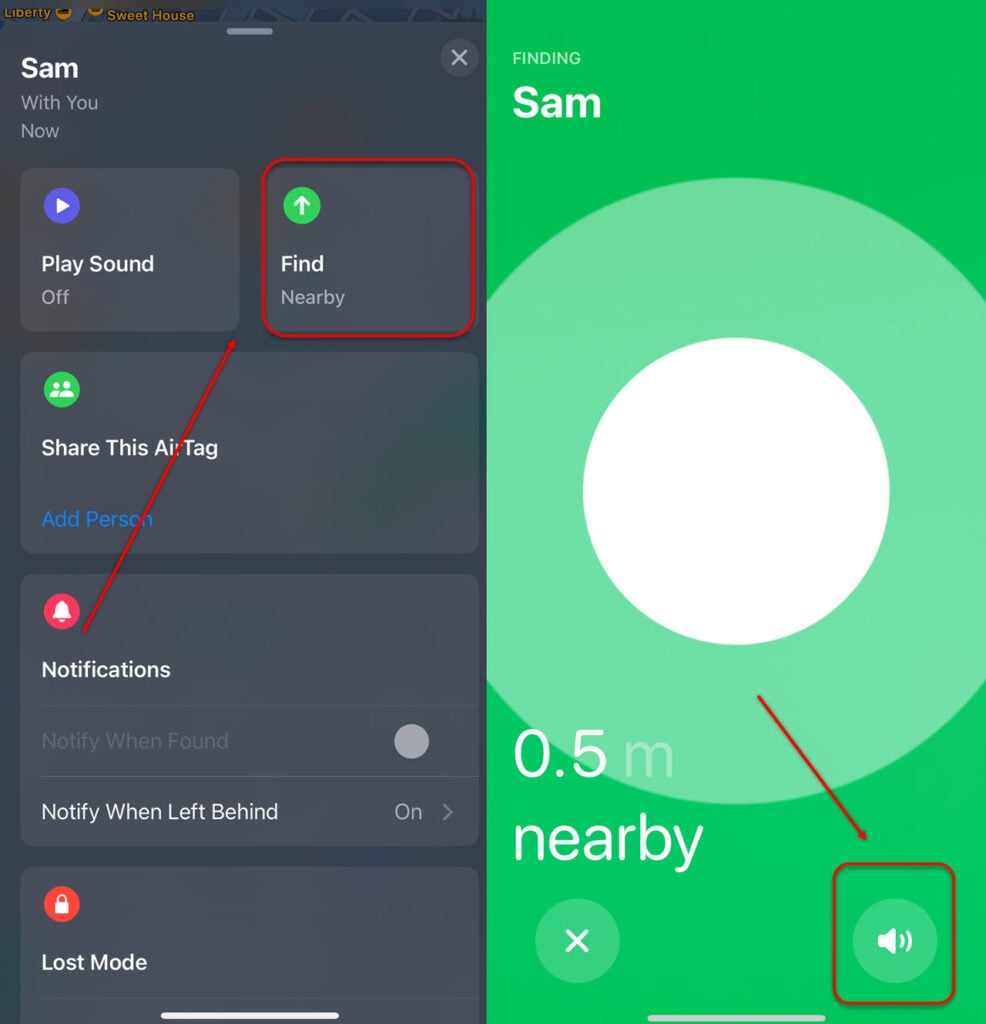
- Open Find My app, head to Items and then select the AirTag. Now, tap on Find.
- On the next screen, you can see the distance and an option to make the AirTag beep.
If you see a green Find button, the AirTag is within the Bluetooth range of your iPhone. Now, follow the Precision Finding arrows to locate the object. Using the Play Sound option works pretty well in such proximity.
In case the AirTag is outside the Bluetooth range, you will see the last seen location. Head to that location, which may activate the Precision Finding feature. If not, turn on the Notify When Found feature to notify you when Apple’s Find My Network detects your AirTag.
Also read: Why is my AirTag beeping?
Scenario 2: You forget where you parked your car

Another way that AirTags might come to your rescue is when you forget where you parked your car. This can be overwhelming, especially if you had a long day and want to reach your destination quickly. Not finding your car in the parking location can make you miss a heartbeat. But don’t worry. If you have an AirTag attached to your car, you can locate it in a jiffy.
Follow the same steps that we have mentioned above. For an AirTag, there’s no difference between the car keys and the actual car. Just select the right AirTag, and you’re good to go.
Also read: How many AirTags can you have?
Scenario 3: You suspect that an unwanted AirTag is inside your car
Now, that’s a situation that nobody wants to be in. AirTag tracking technology can be used by other actors to track you down.
Firstly, ensure that the security settings are activated on your Apple device, be it an iPhone or iPad. Head to Settings > Privacy and Security > Location Services and then toggle on Location Services.
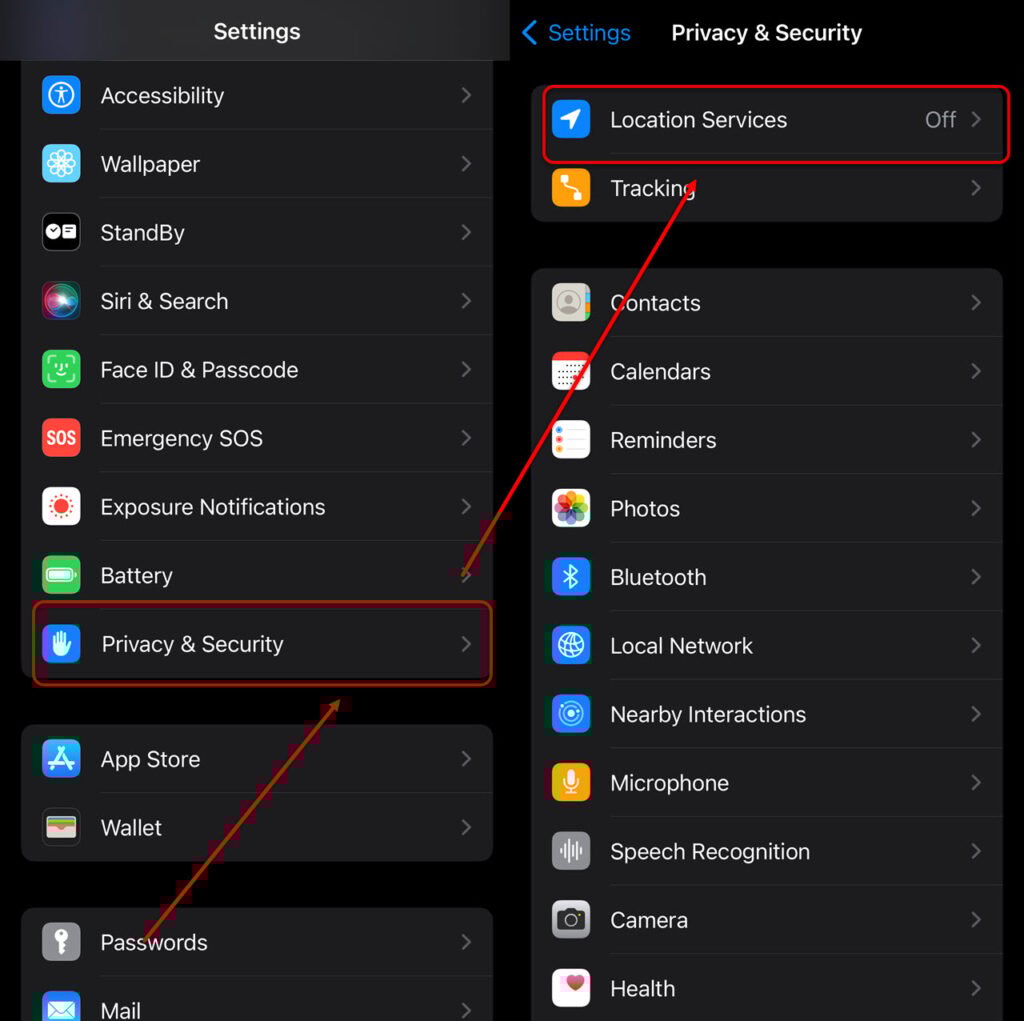
Next, head to System Services and turn on Find My iPhone and Significant Locations.

Apple notifies you when it locates an unwanted AirTag moving with you. Head to Find My > Me > Customise Tracking Notifications to receive this notification. Here, tap on Allow Notifications.

You can also force a beep from the AirTag. Navigate to the alert and then Continue > Play Sound.
Furthermore, if you have an iPhone that supports the Ultra Wideband, you can tap on the alert and head to Continue > Find Nearby and follow the instructions.
What to do after you have found the AirTag?
If you find an unwanted AirTag inside your car, you can take the following steps:

- Disable Find My Network: Head to Settings > Account name > Find My > Find My iPhone/iPad and then turn off Find My Network.

- Note the AirTag’s serial number: After receiving a notification, tap on it to see the AirTag’s information, including the serial number and last four digits. Take a screenshot and contact the authorities.

- Disable the AirTag: Tap on Instructions to Disable and follow the instructions. You can also remove the AirTag’s battery to disable it. To manually remove the AirTag, open Find My, head to Items, and select the AirTag. After that, tap on Remove item > Remove.

Thus, we have mentioned three scenarios where you can use AirTags to find your car keys or car, and to track an unwanted AirTag in your car.
Also read: Do AirTags work without WiFi?