Many people have reported having problems refreshing their AirTag’s location. Usually, AirTag automatically updates the location when it gets within the range of Apple devices.
There could be many reasons why your AirTag is not refreshing the location. Some of them are as follows:
- There are no Apple devices nearby.
- The AirTag has a low battery.
- The internet connectivity is poor.
- AirTag relies on various settings on the Apple device to report its location. These settings include Location Services, Bluetooth, and Find My iPhone/iPad. If these series are off, AirTag will not refresh its location.
In this article, we’ll explain how to refresh your AirTag’s memory and what to do if it is not refreshing.
Also read: Why can’t I delete apps on my iPhone?
How to refresh your AirTag’s location?
As we have explained earlier, AirTags will automatically update the location once they are within the range of iPhones or iPads. Wait a few minutes for the AirTag to locate an Apple device with the Find My service activated.
To see the last known location of your AirTag, follow the steps below:

- Head to Find My app and then tap on Items.
- Select your AirTag to see the last known location.
You can head to that location and activate AirTag once again. If the AirTag is with you, ensure your iPhone’s Location Services and Bluetooth are enabled and bring the AirTag close to your phone — maybe even tap it gently on your phone’s side.
If the AirTag has not updated its location for quite a while and you can’t locate it, you can turn on the Notify When Found feature that will notify you when the AirTag is found. Here’s how to do this:

- Head to Find My > Items and then tap on the AirTag. Now, scroll down and then tap on Lost Mode and select Enable.
- Tap on Continue and enter your phone number. After that, press Next.
- Turn on the toggle in front of Notify When Found. Enter the message that you would like to receive and press Activate.

Also read: Do AirTags work without WiFi?
What to do if the AirTag is not refreshing?
If you have tried the steps above and still the AirTag is not refreshing its location, you can try other methods listed here.
Turn on Location Services
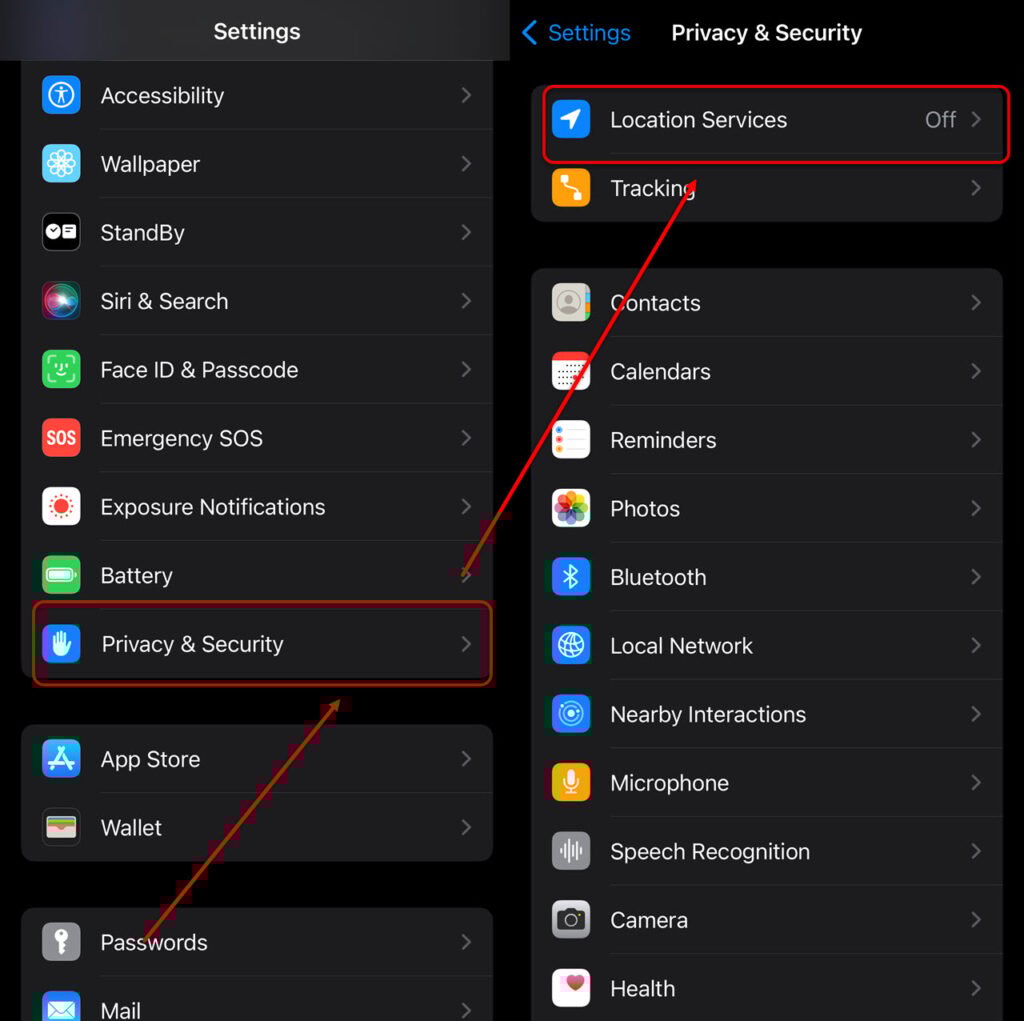
- Head to Settings > Privacy and Security.
- Tap on Location Services.

- Turn on the toggle beside Location Services.
- Next, tap System Services and turn on Find My iPhone and Significant Locations.
Check your Apple device’s Bluetooth

Sometimes, your iPhone’s or iPad’s Bluetooth is off or there is a minor bug that disallows it to locate the AirTag. So, head to Settings > Bluetooth and turn the toggle off and on.
Switch the Airplane mode on and off

Airplane mode on phones and laptops disables all communication services and your device goes off the grid. It is also used to refresh the bugs in any communication service. So, turn the Airplane mode on and then turn it back off after a few minutes.
Head to Settings and then turn on the toggle beside Airplane Mode.
Try to locate the AirTag again and this time it should work.
Restart your iPhone or iPad
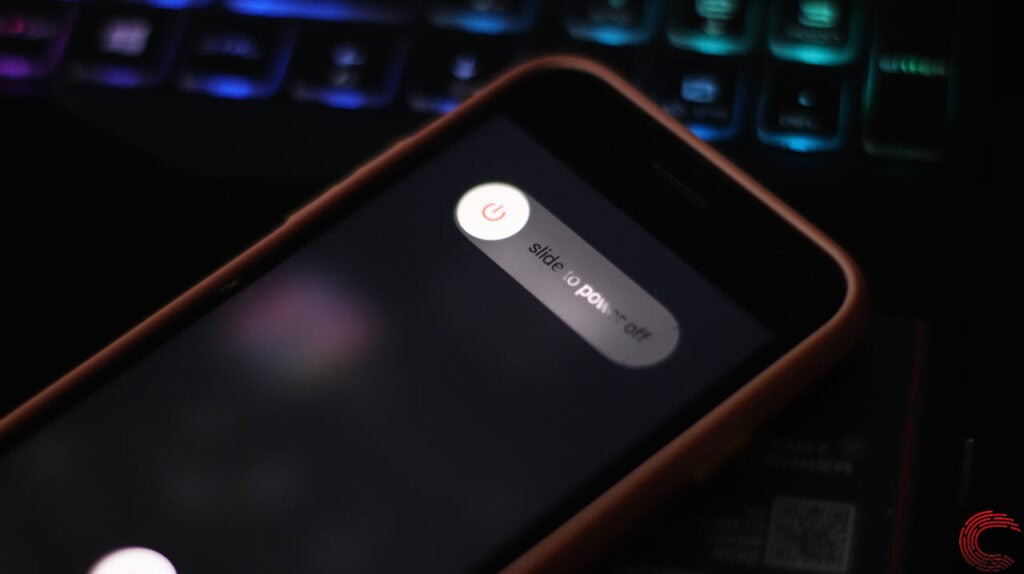
Restarting the iPhone or iPad also flushes out corrupt files stored in the RAM thus removing several minor bugs. If nothing else is working, there is no harm in trying this once.
Press and hold the power button and swipe the slider to turn off your iPhone. Then, press and hold the power button again to turn your iPhone back on.
Update iOS
Sometimes, outdated iOS disallows you to perform certain functions with ease. So, updating your iOS is the right choice in these situations.
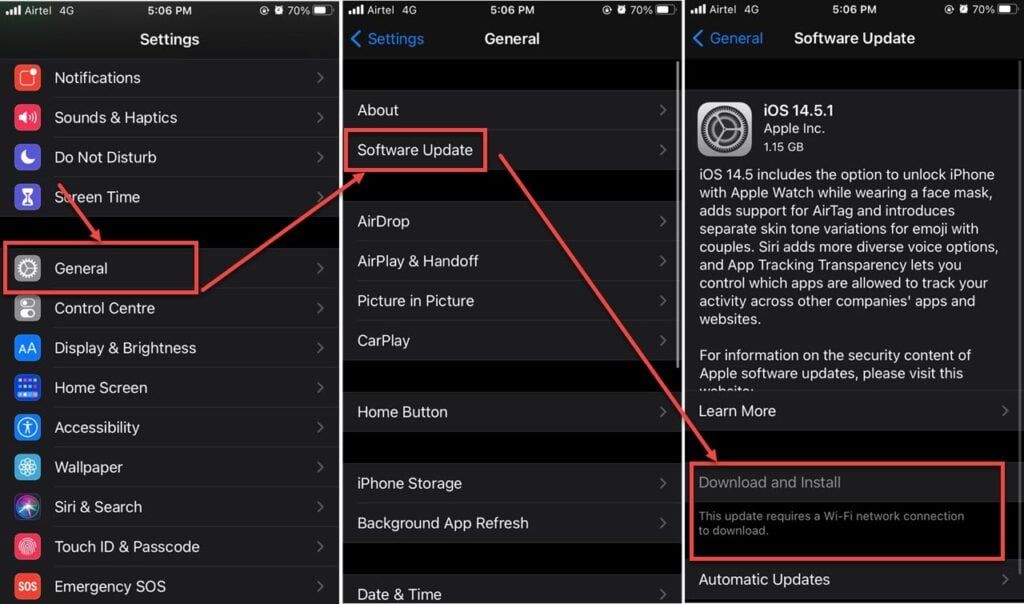
Head to Settings > General > Software Update. Then tap on Download and Install.
Thus, you can use the above methods to refresh your AirTag’s location — hoping it helps.
Also read: How to connect AirTag without the tab?