
The LSA (Local Security Authority) package plays a crucial role in the security of a Windows operating system. It manages security policies and user authentication. However, sometimes, you might encounter an issue where the LSA package is not signed as expected. This can lead to security vulnerabilities and system instability.
If you have encountered the LSA package that is not signed as expected, this article discusses its causes and a few methods to help to fix the issue.
What causes this error?
Various reasons might cause the LSA package is not signed as expected error.
- Corrupted or missing system file.
- Bugs in Windows update.
- Interference by third-party software.
- Registry errors.
Also read: Fix: This PC can’t run Windows 11
How to fix the issue?
Below are some methods that might help you fix the LSA package is not signed as expected error.
Run SFC
If the issue is caused by corrupted or missing system files, you can check and fix them by running the SFC scan. To run the SFC follow the steps below:
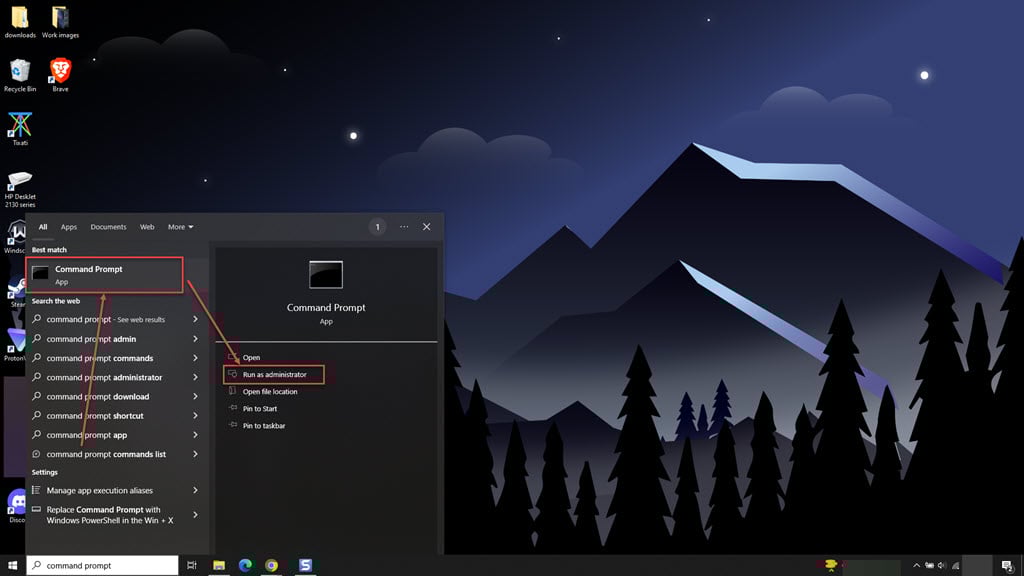
Step 1: Type Cmd in the Windows search and click on the Run as administrator option available on the right side.
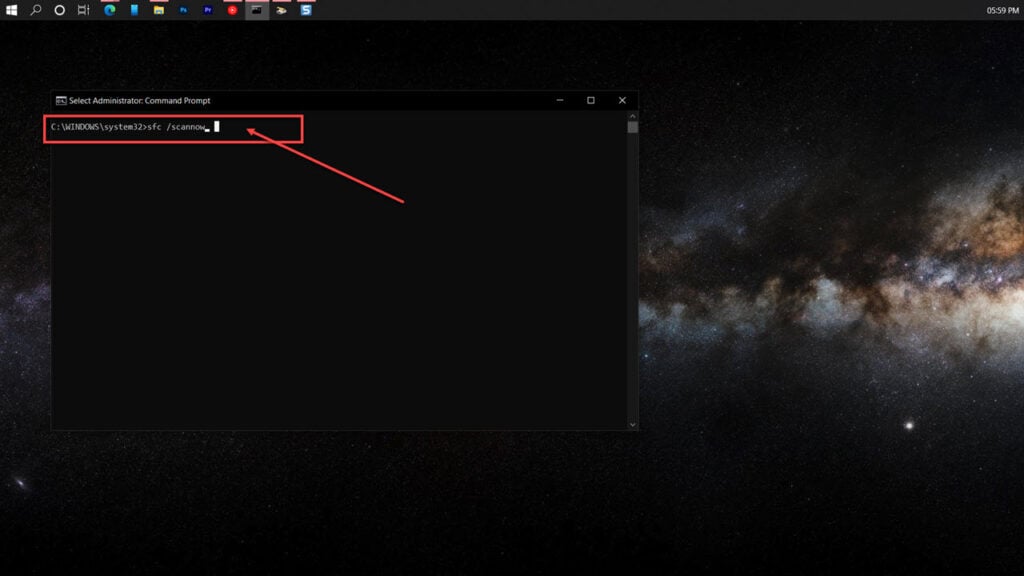
Step 2: Type sfc /scannow in the command prompt to run a system scan.
Uninstall the latest Windows updates
This error can also be caused by some bugs in the recent Windows update. Many users who encountered this error resolved it by uninstalling the recent updates. To uninstall updates, follow the steps below:
Step 1: Press the Windows + I key to open the settings.
Step 2: In settings, click on Update & Security.

Step 3: Click on the View update history option.

Step 4: Click on the Uninstall updates option available at the top of the screen.

Step 5: Find the latest updates, right-click on it and click on Uninstall.

Perform a clean boot
If interference by the third-party apps causes this issue, then disabling them will resolve the issue. To do a clean boot, follow the steps below:
Step 1: Press Windows + R to start Run.
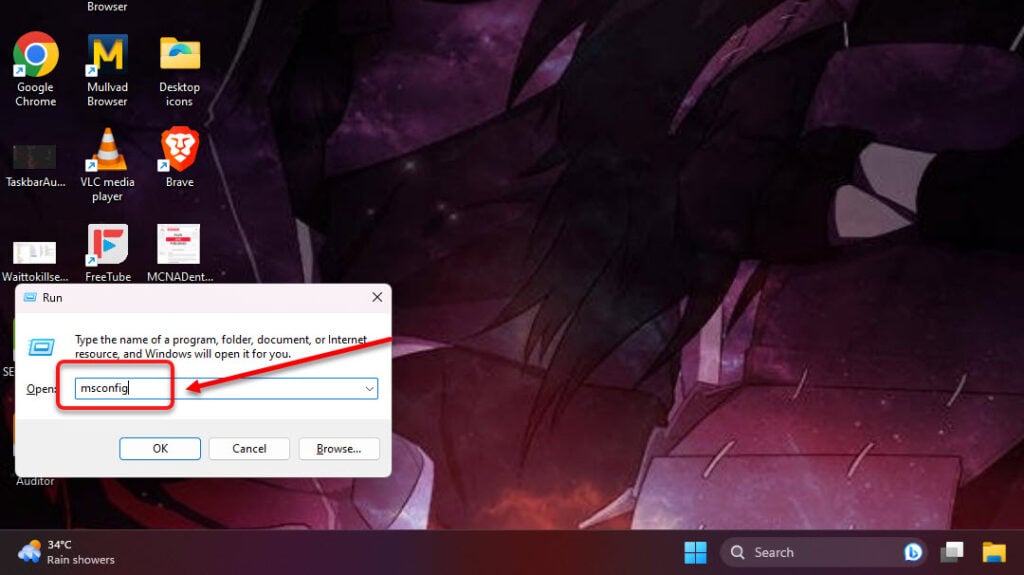
Step 2: In the run, type msconfig and hit Enter.
Step 3: In the system configuration window, click on the Services tab and then check mark the box beside the Hide all Microsoft services.

Step 4: Now, Click on the Disable all button and then click on the OK button.

Step 5: Restart your PC. After the restart, if the issue is resolved, enable all the apps individually and find the main culprit.
Enable LSA Protection
You can enable the LSA Protection through the registry editor without getting a warning. To do that, follow the steps below:
Step 1: Press the Windows + R to launch Run.
Step 2: In run, type Regedit, and hit Enter.

Step 3: In Registry, navigate to HKEY_LOCAL_MACHINE\SYSTEM\CurrentControlSet\Control\Lsa. You can also copy and paste this in the address bar.

Step 4: Find the RunAsPPL file and double-click on it.

Step 5: Change the Value data to 1 and click the OK button.

Step 6: Restart your PC.
Disable Credential Guard
This issue might be caused by unexpected behaviour by Windows Defender Credential Gaurd; disabling it might fix the issue. The credential guard is only available to Windows Enterprise edition or Windows Education edition, so if you have Windows Enterprise or Education edition, then follow the steps below to disable it:
Step 1: Press the Windows + R to launch Run.
Step 2: In run, type Regedit, and hit Enter.

Step 3: In Registry, navigate to HKEY_LOCAL_MACHINE\SYSTEM\CurrentControlSet\Control\Lsa. You can also copy and paste this in the address bar.

Step 4: Right-click on the space, click on New and then click on DWORD (32-bit) Value.

Step 5: Rename the file to LsaCfgFlags and then double-click it.

Step 6: Ensure the Value data is set to O, and click the OK button.

Step 7: Restart your PC.
Perform a System Restore
If the above methods failed to fix the issue, you can try restoring your system to a point where it works fine. To perform a system restoration, follow the steps below:
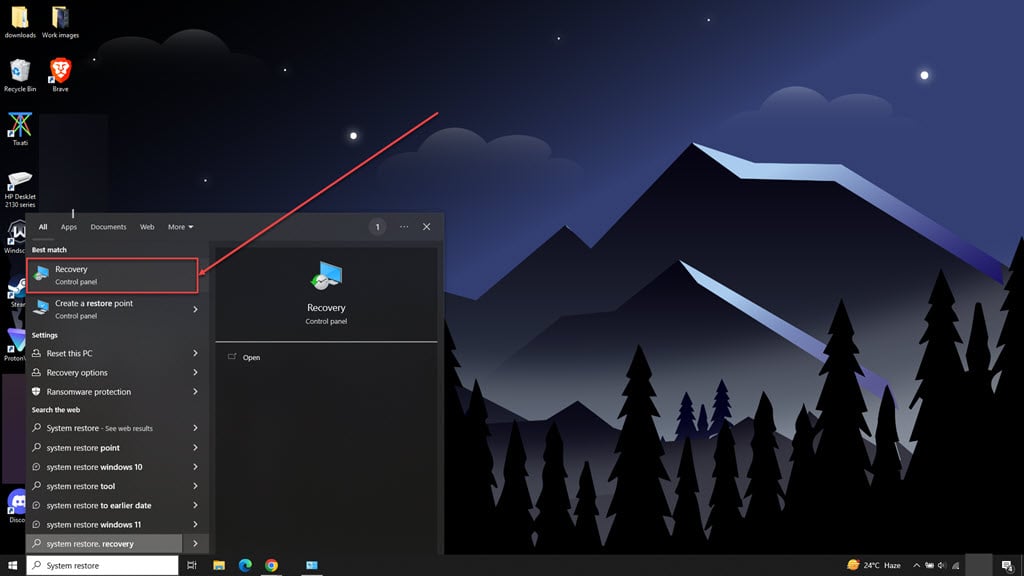
Step 1: Type System Restore in the Windows search and click on the Recovery option.
Step 2: In the new window, click on Open System Restore.

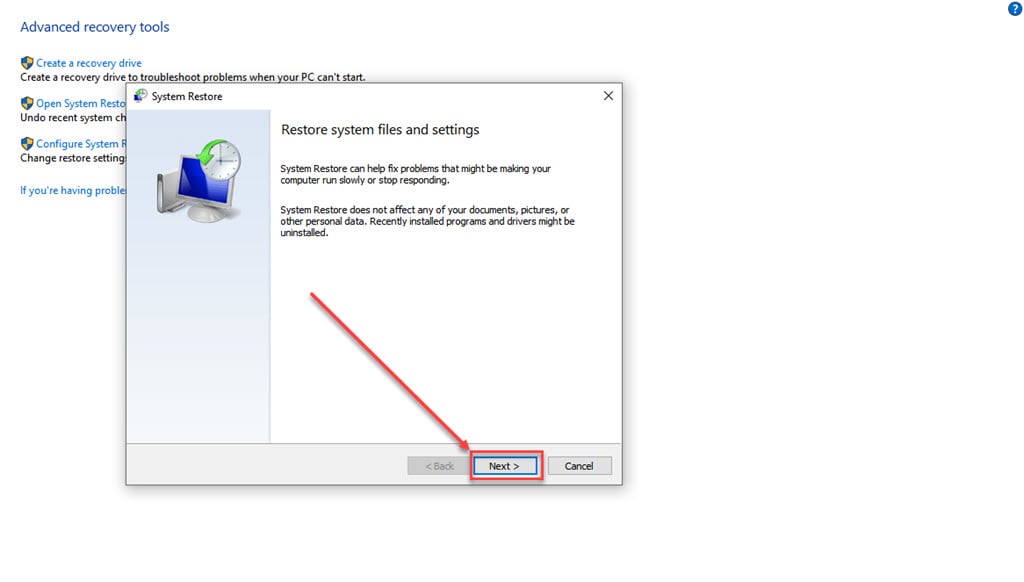
Step 3: In the System Restore window, click the Next button.
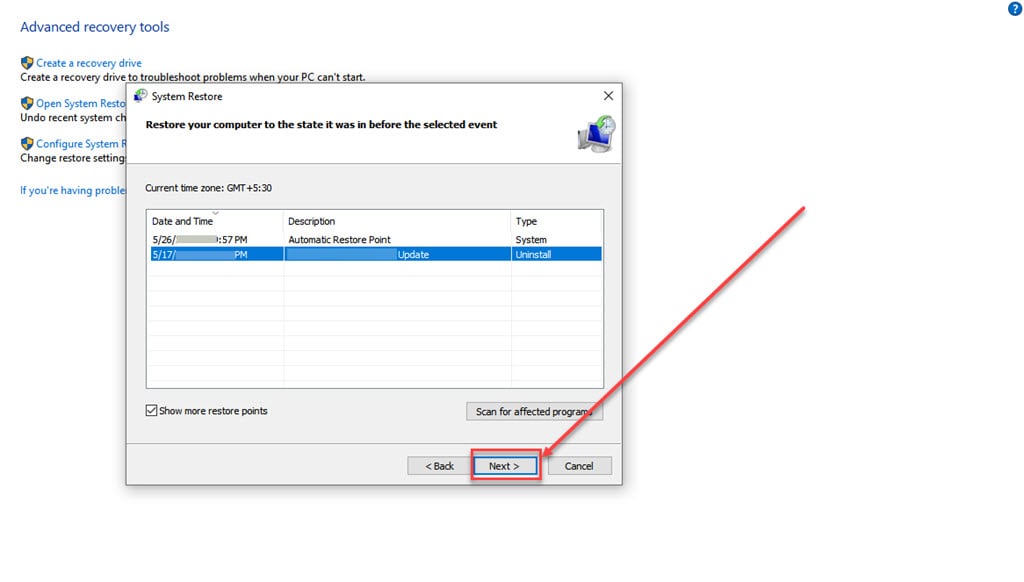
Step 4: Select the store point from the options and click Next.
Step 5: Click on the Finish button.
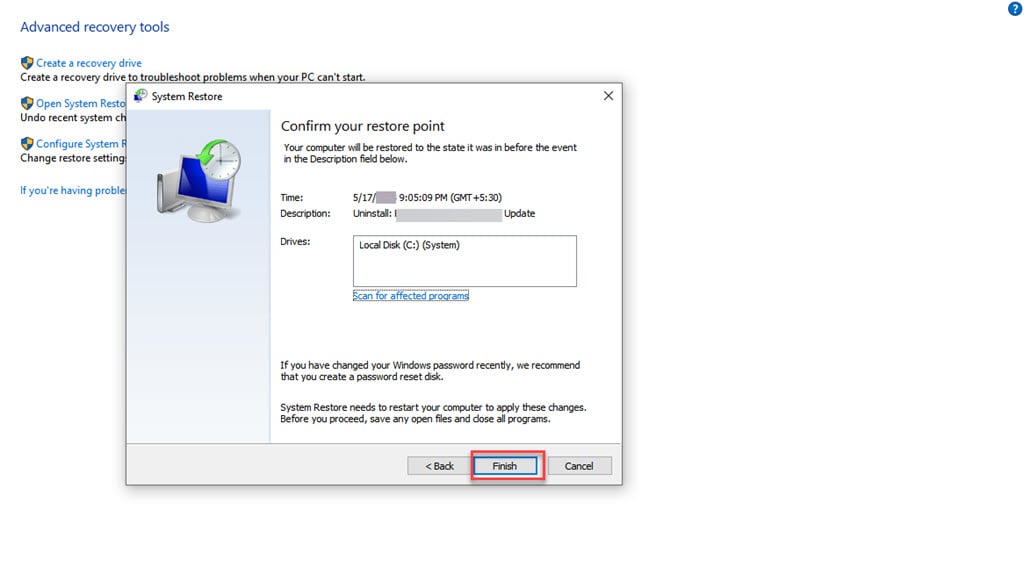
Let the system restore process complete.
Also read: Fix: Windows wslregisterdistribution failed with error: 0x80370102





