Miracast uses wireless connections via WiFi Direct to stream high-quality 1080p Full HD videos and 5.1 surround sound from your device to an external display. It operates independently of your home wireless network, providing versatility in casting content from your smartphone, including DVDs, CDs, DRM-protected files, and other media types. The security of Miracast connections is ensured through WiFi Protected Setup (WPS) and WPA2 encryption.
In this article we have discussed what causes this device doesn’t support miracast error and six methods to resolve the issue.
Below we have discussed:
What causes this error?
Various reasons can cause this error, and below we have mentioned them:
- The device does not support the Miracast.
- Neither device is connected to the same WiFi, or the WiFi is disabled.
- Outdated network drivers.
- Using VPN
Also read: How to fix the Windows 11 NSIS error?
How to fix the issue?
Here are six methods that will help you resolve the issue:
Check if your PC supports Miracast
Many newer Windows computers support Miracast, but it’s essential to confirm compatibility if you’ve upgraded an older system to Windows 11. To do this, check whether your Wi-Fi card’s NDIS driver supports Miracast. Here’s how to do it:
Step 1: In the Windows search, type PowerShell, and in the results, click on Run as Administrator.

Step 2: In Windows PowerShell, type the command Get-netadapter|select Name, ndisversion and then check the NdisVersion column for WiFi. If it is 6.30 and above, your system is Miracast compatible. If you have an older version driver installed, update it to the latest version.

Connect both devices to the same network
For Miracast to work, ensure both devices are on the same WiFi network. If your Windows 11 computer uses an Ethernet connection, connect it to a WiFi network. Ensure that your phone or tablet is connected to the same WiFi network.
Check out our article if your WiFi is not working
Update Network drivers
If the network drivers are outdated, you can update them from the device manager to get the latest version of the NdisVersion driver, here are the steps to do that:
Step 1: Press the Windows+X and tap on the Device Manager option in the dropdown menu.

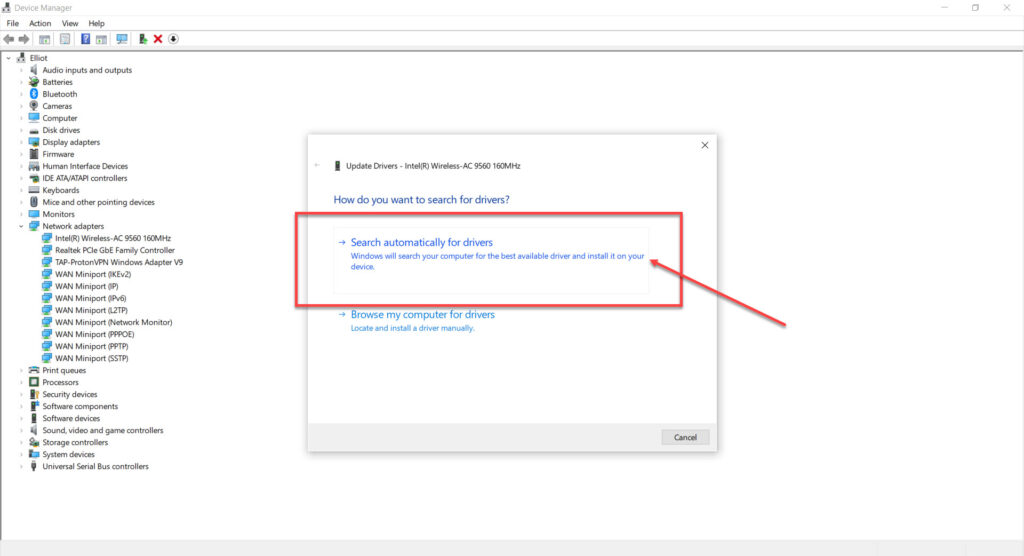
Step 2: Double-click on the Network adaptors to expand it, and right-click on your network adapter; then in the dropdown menu, click on the Update driver.

Step 3: Select Search automatically for drivers, and Windows will automatically find and install available updates.
Reinstall the WiFi adapter
Reinstalling the WiFi adapter has solved the issue for many users; it might work for you as well. To reinstall the WiFi adapter, follow the steps below:
Step 1: Press the Windows+X and tap on the Device Manager option in the dropdown menu.

Step 2: Double-click on the Network adaptors to expand it, right-click on your WiFi adapter, then in the dropdown menu, click on the Uninstall device.

Step 3: Restart your PC, and Windows will automatically reinstall the drivers.
Disable VPN
Installing third-party VPN software on your PC may enable Wi-Fi Direct, the underlying technology for Miracast, as a Split Tunnel security vulnerability. This forces your system to deactivate Miracast functionality. Turn off any third-party VPN software and reboot your PC to resolve this issue.
Change Wireless mode value
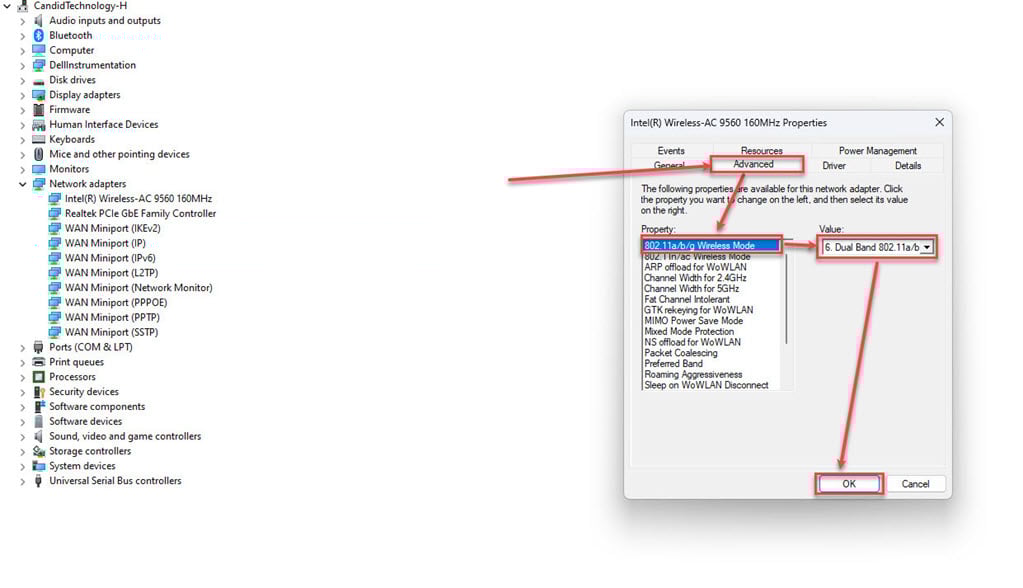
To address this error, an alternative solution is to adjust the Wireless Mode Selection value to Auto in the Device Manager for the adapter. If the default setting is configured as 802.11 b\g, it might cause problems with the pairing process. Here’s how to do that:
Step 1: Press the Windows+X and tap on the Device Manager option in the dropdown menu.

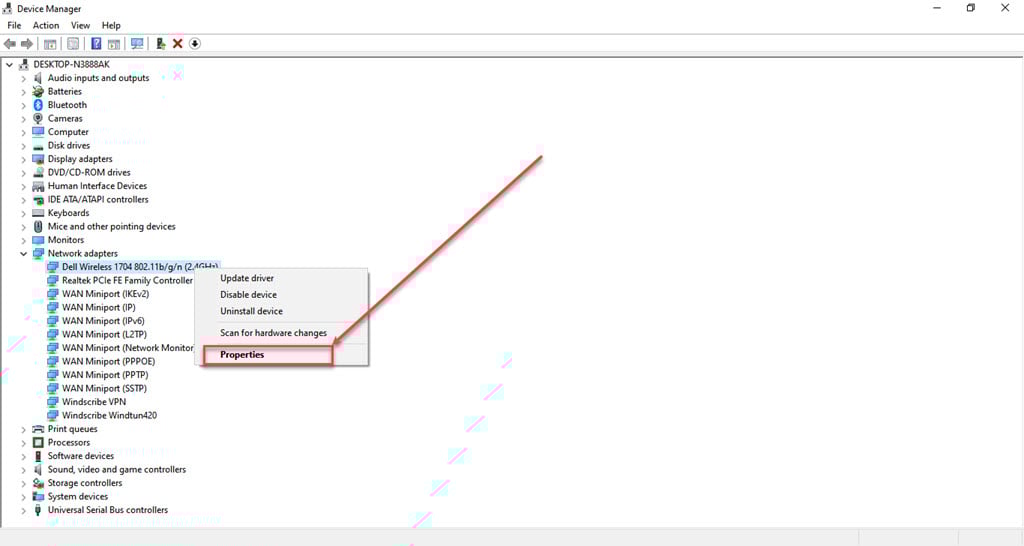
Step 2: Double-click on the Network adaptors to expand it, right-click on your WiFi adapter, then in the dropdown menu, click on the Properties.
Step 3: Click on the Advanced tab, under the Property section, select 802.11a/b/g Wireless Mode, then under the Value section, click on the dropdown menu and set it to Auto or Dual Band. After you finish, click the OK button to save the changes.