
Microsoft’s latest operating system, Windows 11, brought a fresh look and numerous new features. However, like any software, it may encounter issues that users must troubleshoot. One common frustration users face is the inability to install programs on Windows 11.
This article discusses various causes of Windows 11 unable to install programs and a few methods to help you fix the issue.
Why is Windows 11 unable to install programs?
There can be various reasons that might be affecting the installation process on Windows 11:
- Temporary system glitch.
- Windows block app installation.
- Low on storage.
- The installer doesn’t have admin rights.
- The app is not compatible.
- Antivirus or Windows Defender is blocking the app installation.
Also read: How to turn off background apps in Windows 11?
How to fix the issue?
Here are a few methods that might help you fix the issue:
Restart the device
A seemingly simple yet effective method is restarting the device. A reboot can clear temporary glitches, release locked resources, and refresh system processes. After restarting, try reinstalling the program to see if the issue persists.
Change app installer settings
Windows 11 provides the flexibility to install traditional desktop applications and apps from the Microsoft Store. However, specific settings might limit you to installing only Store apps. Reviewing and adjusting those settings before installing any apps is a good idea. Here are the steps:
Step 1: Go to Settings and click on Apps in the sidebar, and then on the right side, click on Advance app Settings.
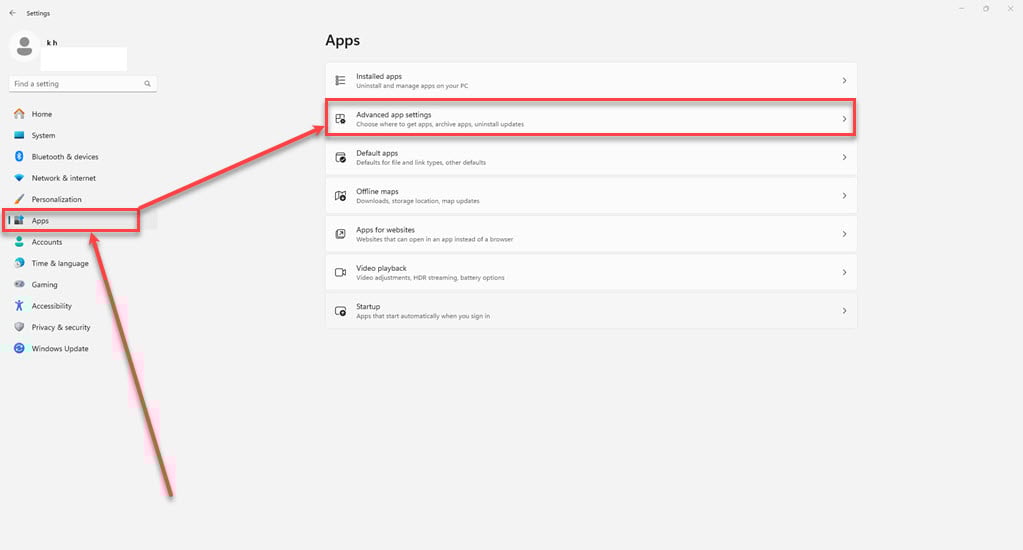
Step 2: In Choose Where to get apps, select Anywhere.

Windows will not stop you from installing software anymore.
Also read: How to check Steam storage space on Windows 11?
Clear Storage
If your computer runs out of storage space, installing new software might be difficult. While this is usually not a problem for smaller applications, larger and more robust tools like Microsoft Office or Adobe products may need several gigabytes of space for installation.
Run the installer as Administrator
In Windows, User Account Control (UAC) ensures your account uses administrative privileges only when necessary. You’ll encounter a UAC prompt when installing most software, which typically requires admin rights.
If you’re installing an app specifically for your current account, it might not require administrator permissions. However, if it’s software intended for all users, it’ll need admin approval. Ensure that UAC isn’t turned off, as this can prevent admin permission prompts from appearing. To do that, follow the step below:
Step: Right-click on the installer file, and then in the dropdown menu, click on the Run as Administrator option.

Check app compatibility
Many software applications come in two versions: 32-bit and 64-bit. The 64-bit version is only compatible with 64-bit Windows, while 32-bit apps can run on 32-bit and 64-bit Windows due to backward compatibility.
Usually, the software installer automatically selects the appropriate version for your system. If there’s only a 32-bit option, it installs that. If you have a relatively recent computer, it’s probably 64-bit, so this compatibility issue is unlikely to be a concern.
Check your Antivirus settings
Your antivirus software might block software installations on Windows, which can be good for security or cause issues. It might stop malware from installing, but if you’ve disabled alerts, you might miss warnings. Check recent alerts in your security software. Scan any suspicious software for malware before installing it. Avoid installing potentially infected programs, especially if they were once trusted or downloaded from unreliable sources.
Sometimes, overly cautious antivirus programs can stop legitimate installations by blocking access to necessary folders. If this happens, temporarily disabling your antivirus or Windows Defender might be necessary to complete the installation.
Check out our article to learn how to disable Windows Defender





Just what I was searching for saved to fav