
Google Forms is a handy tool that lets you easily make surveys, quizzes, and feedback forms. While most people use it for personal stuff, there are times when you might want to share a form with a larger audience. Whether you’re organising an event, collecting public opinions, or simply sharing information, making your Google Form public is a straightforward process.
This article discusses why make Google Forms public and how to make Google Forms public in a few simple and easy steps.
Why make Google Forms public?
Sharing your Google Form with the public makes it more accessible to a broader range of people, allowing you to gather insights from a diverse audience. It’s a straightforward and secure method to distribute your form or survey and collect valuable feedback.
However, it’s important to note that even though respondents can fill out the public Google Form, they won’t be able to edit the form or make any changes to its content.
Also read: How to close Google Forms manually and automatically?
How to make Google Forms public?
Here are the steps to make the Google Forms public:
Step 1: Open the Google Forms on your device and then open the form you want to make public.
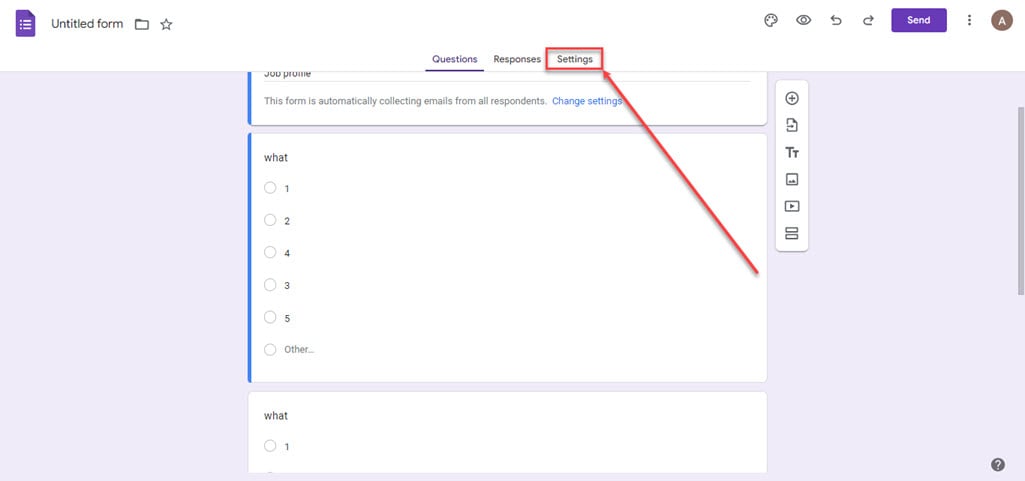
Step 2: Click on the Settings tab at the top.
Step 3: Click on the Responses option to expand it.

Step 4: In the Collect email addresses, select Do not collect and turn the toggle off beside Limit to 1 response. After you are done, click on the Send button.

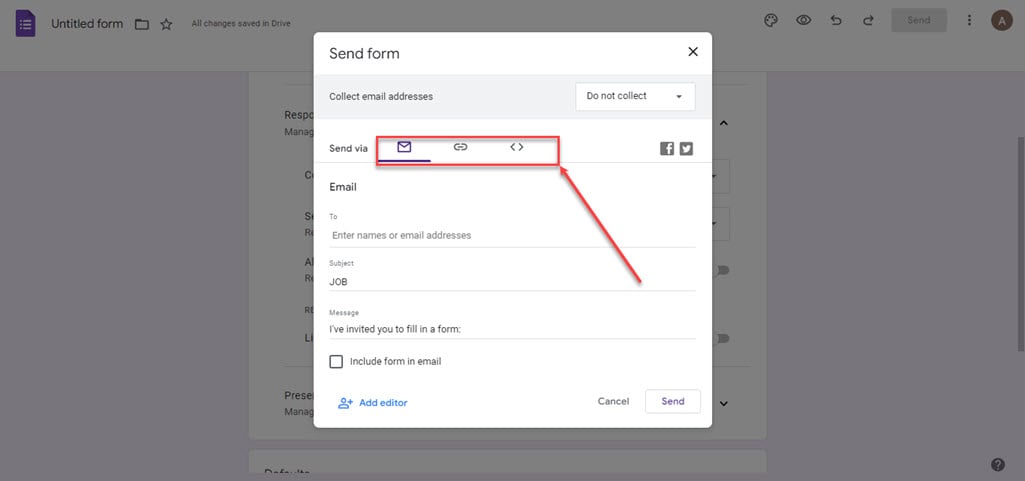
Step 5: There are various options available through which you can send the Google Form; choose one of them.
- Sending by Email: With this option, you can add a subject line and a message when inviting someone to complete your form. You even have the option to insert the form directly into the email.
- Sharing a Link: If you prefer to share your form through a link, Google Forms provides a unique link that lets anyone access and fill out the form, no matter where they find the link.
- Embedding HTML: By choosing the embed option, you can copy an HTML code to seamlessly integrate your form into a web page, allowing people to fill it out directly on the site.
Also read: How to select all Google Photos?
Make Google Forms public but not editable
People can engage with your form in two ways: as respondents or as collaborators. Respondents can see your form and give their answers, but they can’t change the form or check out what others have responded to. On the other hand, collaborators can edit both the form and the responses.
How to add a Collaborator?
If you want to add a collaborator, then follow the steps below:
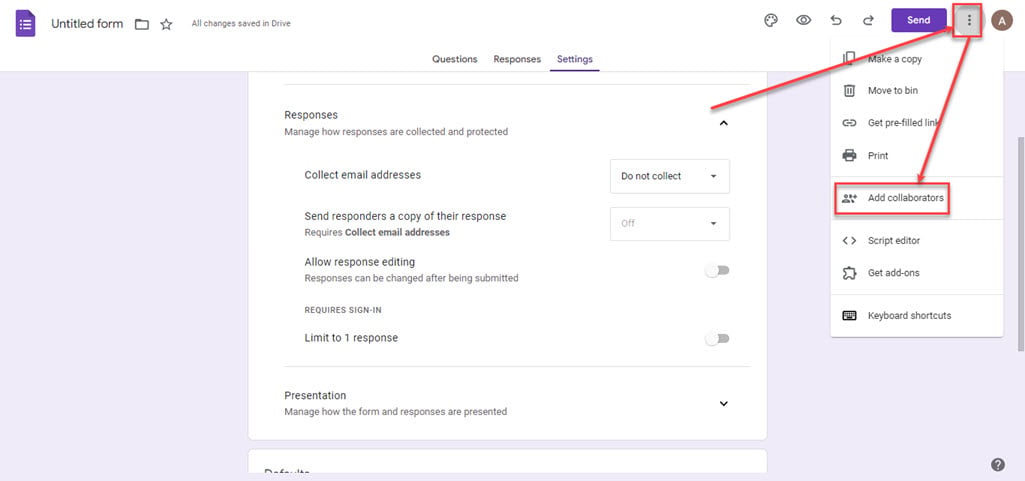
Step 1: Click on the Triple dot icon at the top right corner, and then in the menu, click on the Add Collaborators option.
Step 2: Type the email address of the person you want to add as the collaborator and ensure the General access is set to Restricted. After you are done, click on the Done button.

Also read: Fix: Server rejected in Google Forms






