
Google Slides is a popular presentation tool and has emerged as a reputable alternative to Microsoft PowerPoint. The platform offers many interesting features that rival PowerPoint in almost every way.
You can create presentations, add speaker notes, add audio and GIFs, download and edit presentations offline, and when you’re done, you can save the slides as PDF.
But what if you want to convert the slides to a vertical format? A vertical format is useful for different purposes, such as:
- For presenting infographics, charts, dashboards or tables. Usually, these require a long vertical space rather than a horizontal one.
- For creating posters, flyers, brothers and legal documents.
- For creating presentations meant for mobiles.
Also read: How to record a presentation on Google Slides?
Change the orientation in Google Slides
Let us understand how to make Google Slides vertical. There’s no direct setting or option to do that. You’ll have to apply a bit of creativity to see the result.
Step 1: Open Google Slides, click File, and select Page setup.
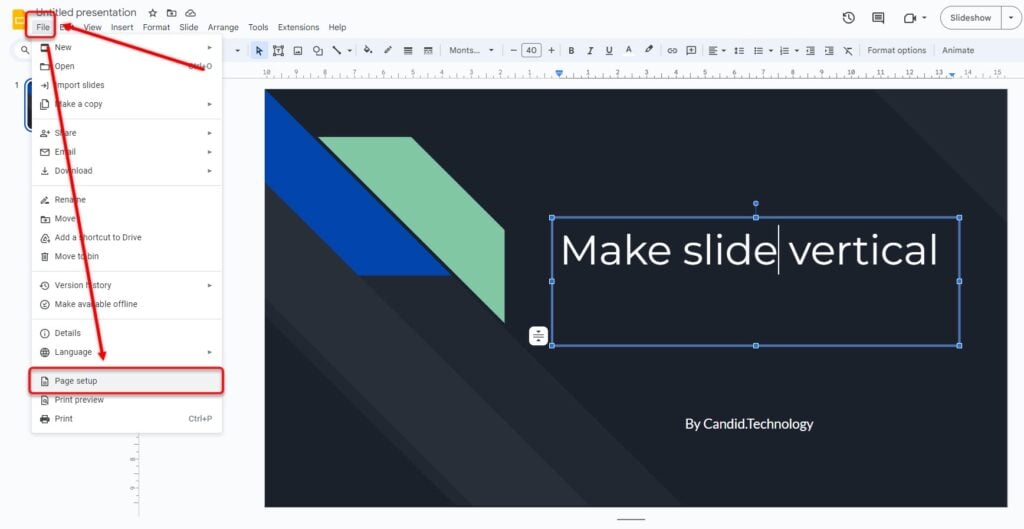
Step 2: Select Custom.

Step 3: Now, all you have to do is enter the slide’s dimensions in inches, centimetres, points or pixels. On the left, you will see the width of the slide and on the right, you’ll see the length. Enter the right values, click Apply, and your Google Slide will be converted to a vertical one.

If you’re having difficulty finding the right number, remember that the usual dimensions of a widescreen slide are 16 by 9 or 16 by 10 centimetres; 16 is the width, and 10 is the length. Swap the values easily and get a vertical slide. That’s what we have done, and here’s what we got:
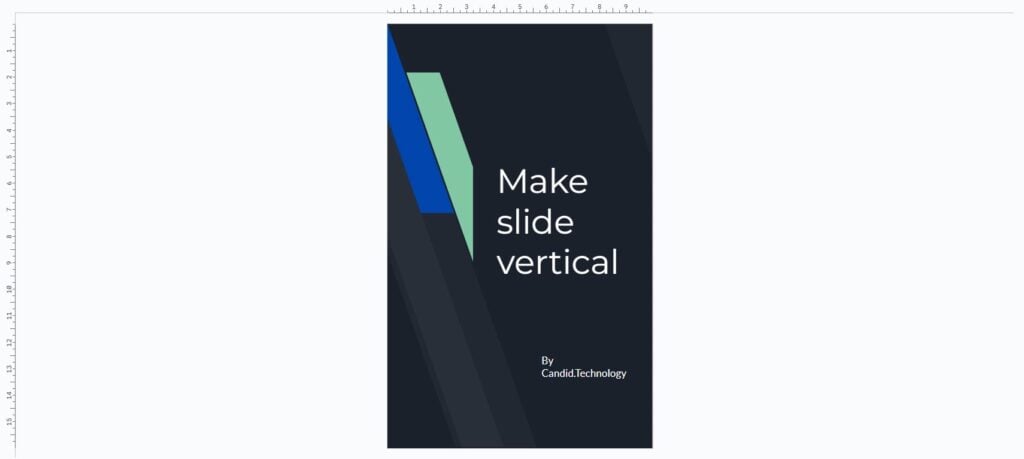
Now that you know how to make Google Slides vertical, you can set different values to get the perfect outcome.





