
As a Windows 11 user, you may want to remove the PIN and put a password in place. A PIN is a personal identification number you can create on your device.
The PIN is attached to the device. While many believe that remembering a PIN is easier than remembering a password, it should be noted that you can set a complicated PIN as well, which can be difficult to remember.
Also, passwords and PINs may often look the same as there is an option to include alphabets and other characters in PINs. This isn’t exactly like the PIN that you use on Android devices.
In this article, we’ll explain how to remove PIN from Windows 11.
PIN (Windows Hello) option
This is probably the easiest way to remove Windows 11 PIN. Open Settings by pressing the Windows key + I or by searching settings in the start menu search bar.
After that, follow the instructions given below:
Step 1: In Settings, head to Accounts > Sign-in options.

Step 2: Next, head to PIN (Windows Hello) and then select Remove.

Enter the password to confirm the process.
Also read: How to find the MAC address in Windows 11?
By disabling passwordless account
Simply put, a passwordless account uses other methods, such as two-factor authentication (2FA) to log in to your account.
For a Microsoft passwordless account, you will need the Microsoft Authenticator app on your mobile or tablet. You can download the app from any authorised online store.
However, if you have turned on the passwordless account, you’ll have to disable it if the Remove PIN button is greyed out.
Step 1: Go to Accounts > Your Info.

Step 2: Next, click on Accounts.
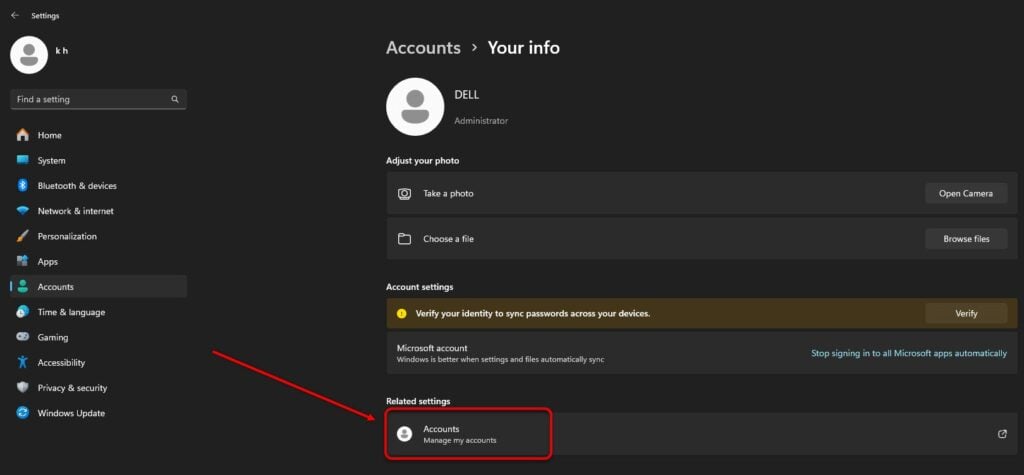
Step 3: Then click on Security and Additional security options.

Step 4: Click on Turn off under Passwordless account and follow the instructions.

In conclusion, removing the Windows 11 PIN is quite easy if the option is not greyed out. Head to Account > Sign-in options > PIN (Windows Hello) and select Remove. However, things do get complicated if the Remove buttons are greyed out. Then, you must head to Account > Your Info > Account to remove the passwordless account option.
Also read: How much RAM does Windows 11 use?


