Apple’s AirPods have become an indispensable accessory for many. However, encountering the issue of one AirPod not working can be frustrating. Whether you’re unable to hear sound from one side or experiencing connectivity problems, there are several potential reasons behind this issue.
This article discusses the causes of one AirPod not working issue and seven ways to help you fix it.
Below we have discussed:
Why is one of your AirPods not working?
There are various reasons why only one of your AirPods stopped working, and they are mentioned below:
- Low battery.
- Temporary system glitch.
- Dust or earwax is accumulated in the AirPod.
- Audio balance settings are changed.
Also read: How long do AirPods take to charge?
How to fix the issue?
Here are seven methods to help you fix the issue:
Check the battery
The most common reason for a silent AirPod is a dead battery. Make sure both AirPods are placed securely in the charging case. Leave them there for at least 30 minutes to recharge. Open the case near your phone and check the battery status for each AirPod.
Check out our article to learn how to check the Airpod battery status
Clean the AirPods
Over time, earwax and debris can build up on the speaker mesh, dampening the sound. Clean the AirPods with a dry cotton swab, focusing on the little meshed areas. Be careful not to use any liquids or sharp objects for cleaning.
Restart your device
Sometimes a simple restart can work wonders! Before attempting the reset process mentioned below, try restarting your device (phone, tablet, or computer) with your AirPods. A fresh start can often resolve temporary glitches that might be causing the audio imbalance.
Reset AirPods
There could be a technical problem or connectivity issue causing one of your AirPods not to work properly. Resetting the AirPods might resolve this issue. Here are the steps:

- Keep your AirPods in the charging case, close the lid for about 30 seconds, then open it again.
- On your iPhone, open Bluetooth settings.
- Tap on the i icon beside your AirPods.
- Tap on Forget This Device and then tap on Confirm to disconnect the AirPods from your phone.
- Find the Reset button at the back of the charging case and press it, then press and hold the Reset button for about 15 seconds.
- The status light will start to flash the amber light three times. After that, release the button and close the lid.

Check the balance settings of AirPods
In the Accessibility options on iOS devices, a setting allows you to adjust the audio balance between the left and right AirPods. If the balance settings are incorrect, it could be why all the sound is going to just one AirPod. Here are the steps:
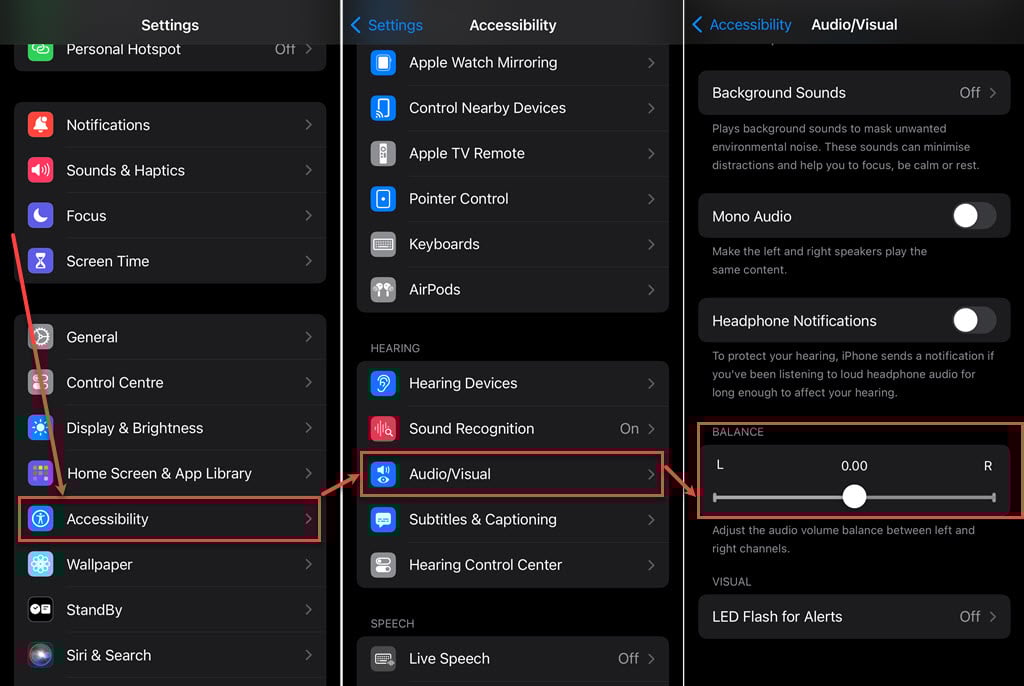
- Open the Settings app on your phone and tap on Accessibility.
- Under Hearing, tap on the Audio/Visual option.
- Make sure to keep the balance slider in the middle to get equal sound from both the Airpods.
Also read: How to find dead AirPods?