As an avid gamer, you may have seen Steam error 29 while linking your game account to Steam. This error can be frustrating, especially if your friends are waiting for you to join a game. Fortunately, there are a few steps that you can take to resolve this error.
In this article, we’ll discuss how to fix Steam error 29 and resume your gaming experience. But before that let us understand the causes behind Steam error 29.
Possible reasons behind Steam error 29
Steam error 29 can be a result of a lot of things, including:
- The conflict between Easy Anti-Cheat and Steam.
- Similarly, if your games fail to launch, the problem could be related to issues with the Microsoft Visual C++ Redistributable.
- If you cannot make purchases or change your account’s password on Steam, the culprit might be your internet connection.
- Some games require a separate third-party account, which may not be properly linked to your Steam account.
- Also, remember that your antivirus software can trigger Steam Error 29.
Also read: How to fix Steam error code 118?
Steam error 29: Possible fixes
Now that we have analysed the possible reasons behind the Steam error 29, let us head to the fixes:
Check your internet connection
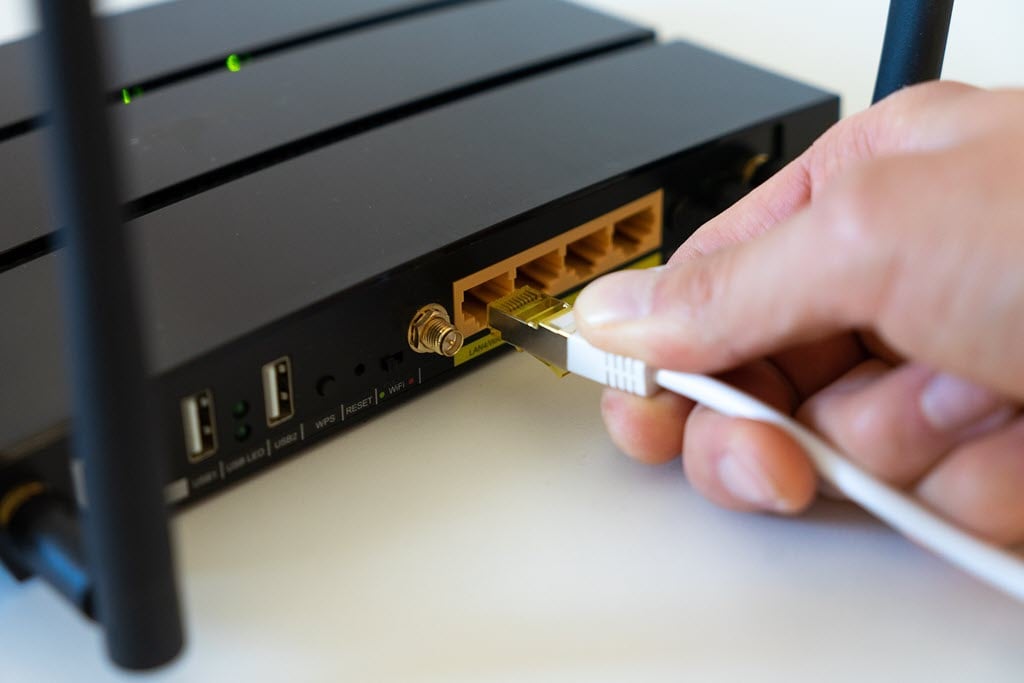
The most common reason you witness Steam error 29 is a slow or laggy internet.
We have compiled a detailed list of steps that you should take to fix your internet and WiFi. Head to these articles follow the fixes and see if it fixes the error. If not, move on to the next steps.
Install the latest Microsoft Visual C++ Redistributable
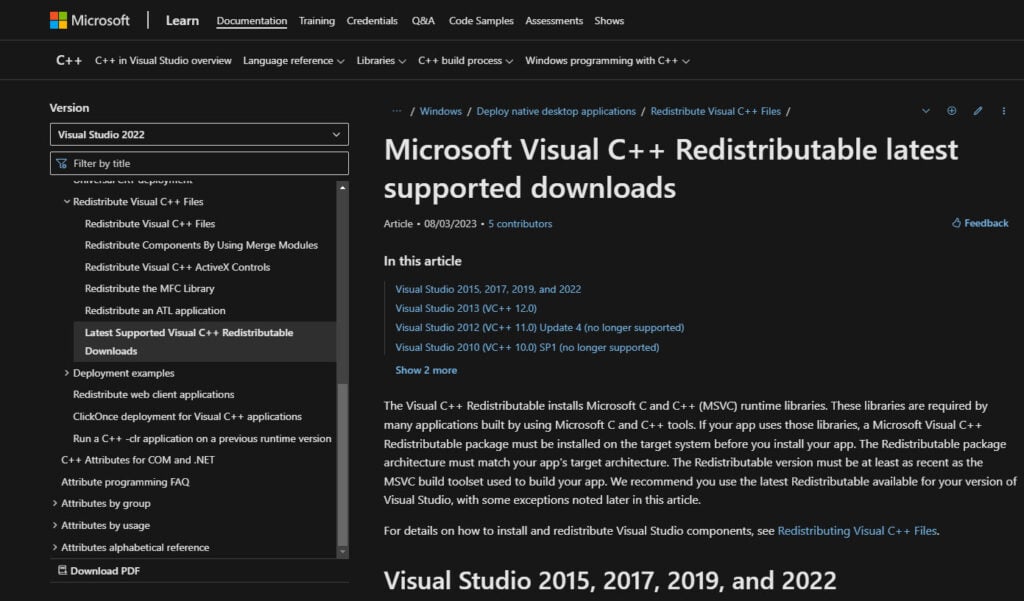
Most games run smoothly when you have installed the latest version of Microsoft Visual C++ on your system.
If you have downloaded Microsoft Visual C++, you may need to update it to the latest version for a more seamless game performance.
To install it, head to the Microsoft Visual C++ Redistributable download page and then select your preferred version. After that, you have to run the installer, and you are good to go.
Check your antivirus software
Sometimes, your antivirus software may interfere with Steam, causing Steam error 29 and other such errors.
To fix this, you will have to disable your antivirus. Here’s how to do that:
Step 1: Search Virus and Threat Protection in your taskbar search bar and then click on the option.

Step 2: Now, under the Virus and threat protection settings, click on Manage settings.

Step 3: Turn off the toggle under Real-time protection. This will disable your Windows Defender antivirus.

For other methods to disable Windows Security, head to this article.
Check if this resolves Steam error 29. If not, turn on the toggle and head to other steps.
Also read: Why is Snapchat so slow?
Add an exclusion to the Windows Firewall
Rather than disabling your Windows security, you can add Steam to the list of exclusions allowing Steam to bypass security restrictions.
Head to the Virus and Threat Protection> Manage settings. Take a look at the steps above.
Step 1: Next, click on Add or remove exclusions under the Exclusions heading.

Step 2: Click on Add an exclusion and select Steam.

This will allow Steam to be excluded from Microsoft Defender antivirus scans.
Check the third-party account that you link with Steam

Certain games available on Steam necessitate a distinct, independent account for gameplay.
Failing to integrate this account with your Steam client can result in Steam error 29. Notable examples of third-party gaming accounts include Rockstar, Epic Games, Origin, and Uplay.
However, there is not-so-good news for you on this front. Steam does not provide an official method for manually linking third-party accounts. Therefore, you must scrutinise the game triggering the error and verify if it mandates a separate account. If it does, navigate to the game’s official website or client and establish the link with your Steam account. This process can be a bit tedious, especially if you have a lot of games on your Steam account.
If none of the above solutions work, contact Steam support for a more detailed analysis of the problem.
In conclusion, Steam error 29 is basically a linking error that occurs when you have an issue with linking your game account with Steam. However, there may be other causes of this error, too. We have compiled the most probable reasons, alongwith their fixes.
Also read: Steamworks Common Redestributables explained