Facebook has remained a constant for billions of users worldwide. Facebook is where people share their successes, quirks and daily thoughts. However, if you have ever tried to edit a Facebook post and cannot edit it then you are not alone.
This article discusses the causes of why you can’t edit an FB post and how to edit a post on the Facebook mobile app and on your desktop.
Why can’t you edit an FB post?
If you are unable to edit a FB post then below we have mentioned a few possible reasons that might be causing the issue.
- Temporary system glitch.
- The Facebook server is down.
- Poor internet connection.
- Corrupted app cache.
- Using an outdated version of the Facebook app.
- Issues with the device.
Also read: How to see sent friend requests on Facebook?
How to fix the issue?
Below, we have explained a few ways to help you fix the issue.
Restart the device
Most of the time, restarting your device is usually the best way to fix basic problems, and it also works most of the time in resolving minor issues caused by technical glitches and bugs in your phone. If a technical glitch or bugs cause the issue, restarting it will resolve it.
Check the internet connection
Sometimes, you might face issues in editing your Facebook posts because of a poor or unstable internet connection. Make sure your device is connected to a reliable network. Switch between Wi-Fi and cellular data, and if needed, restart the WiFi.

Also read: How to remove Bing from Windows 11?
Check the server status
If you don’t see the edit option for your Facebook post or you are unable to use the edit option, then it might be possible that the Facebook server is down. Check the different social media platforms to find out about the server issues.
You can also use websites like downdetector to check the server status of Facebook. If the server is down, then you can’t do anything but wait patiently.
Clear the app cache
Sometimes, the corrupted cache memory can affect the proper functioning of the app. It might be the reason that might be causing the issues with the edit option for a Facebook post that you are trying to edit. Clearing the cache memory of the Facebook app might resolve the issue.
Check out our article to learn how to clear the app cache on Android
For iPhone
Go to Settings > General > iPhone > Offload App to offload an app and clear the cache.
Update the app
Developers are constantly release updates to address bugs and improve performance. If a bug in the app is causing the issue with the editing Facebook post, updating it might resolve it. So check for the Facebook app update in your device’s app store and update it, if available.

Also read: How to save images on a Chromebook?
Reinstall the App
If updating the app doesn’t fix the problem, it might be due to a bug in the app itself, or some files might have been corrupted. Reinstalling the Facebook app might fix the issue. Uninstall the Facebook app from your device, reinstall it from your phone’s app store and check whether you can edit the post now.
Use another device
Try a different one if you’re having trouble editing on one device. For example, if it’s not working on your smartphone, switch to your computer or vice versa. This can often solve the issue, especially if it’s a one-time problem. But if it keeps happening, you can explore other solutions.
Edit post on browser
The issue may be with the app, and that’s why you are unable to use the edit option on Facebook. You can use a web browser on your phone, computer, or laptop to edit your Facebook post. Log in to the Facebook website with your username and password, find your post, and make the changes you want.
How to edit a post on the Facebook mobile app and desktop?
Below, we have explained the steps to edit a post on both the Facebook mobile app and desktop.
Edit post on the app
Follow the steps below to edit a Facebook post on the mobile app.
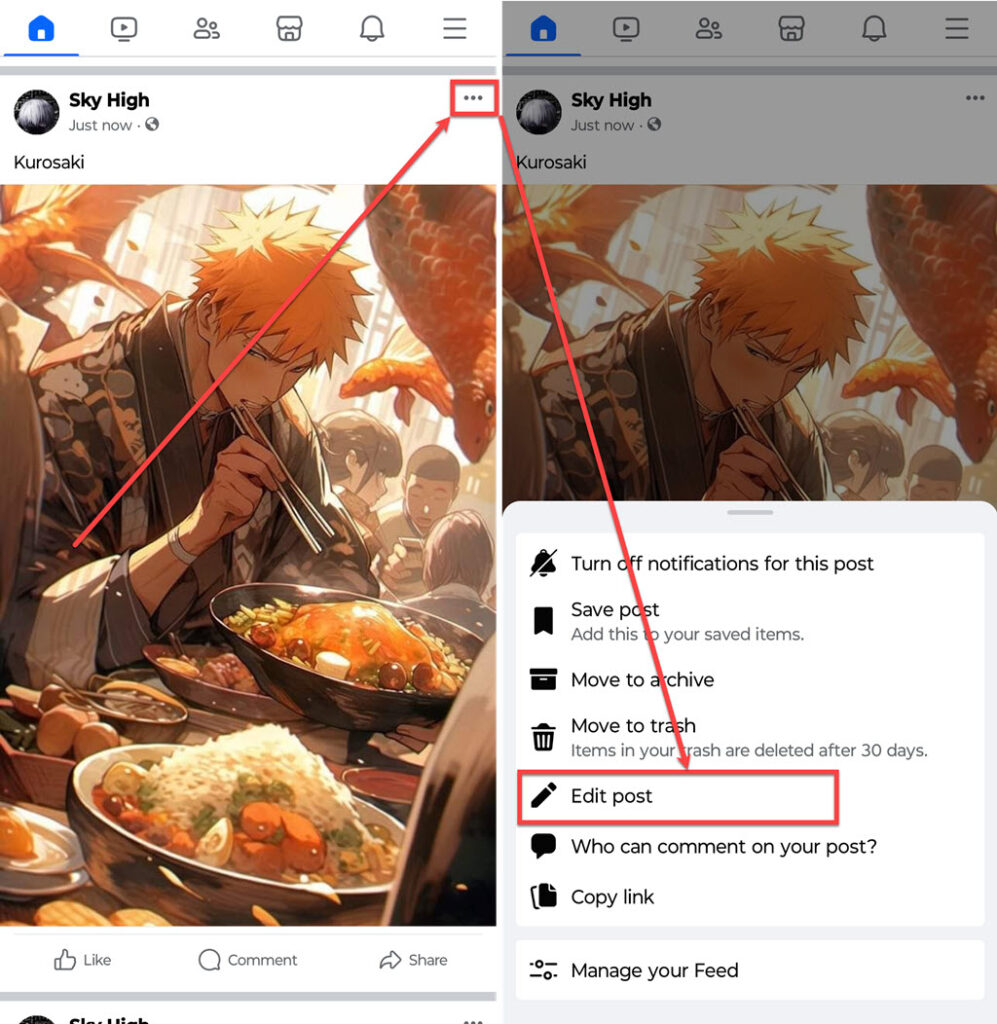
- Open Facebook on your phone and go to the post you want to edit; tap on the Menu (triple horizontal dots) icon.
- In the menu, tap on the Edit post option.
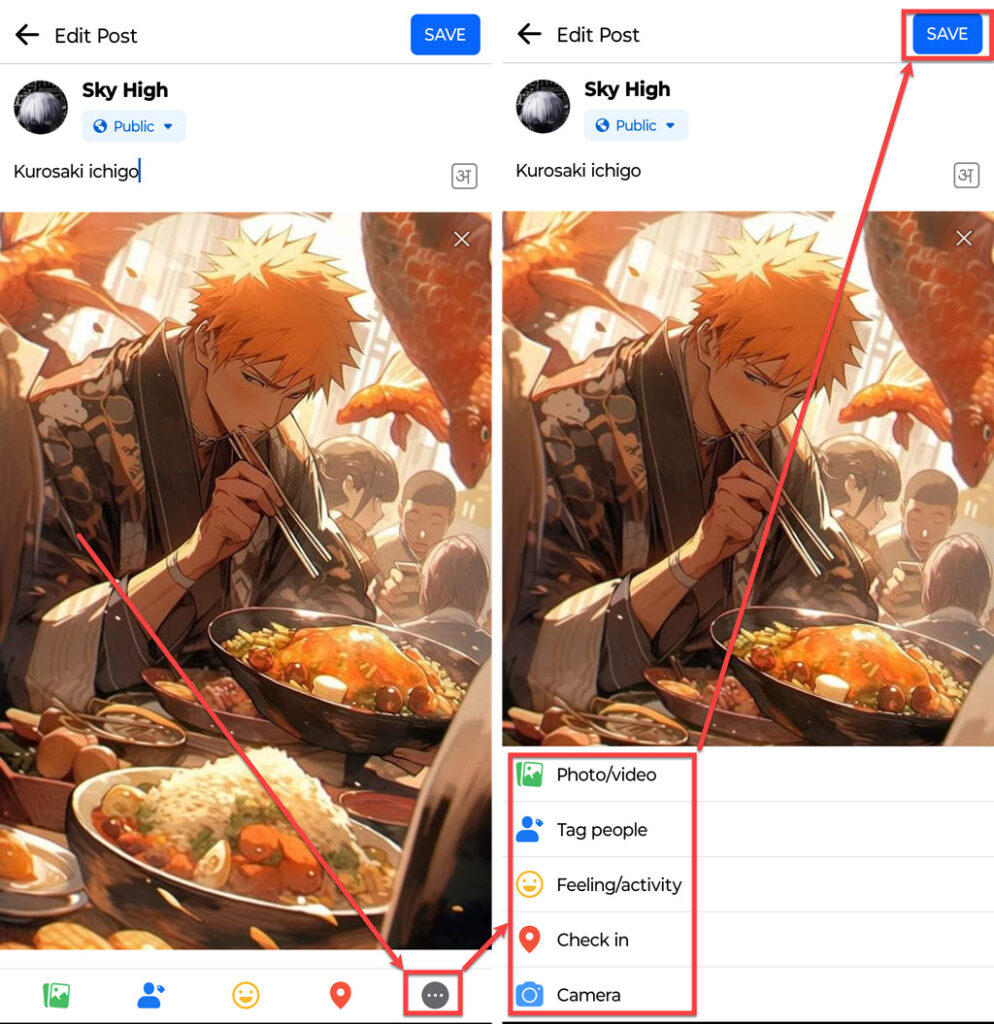
- Tap on the Triple horizontal dots button at the bottom right corner of the screen to expand all options.
- You can edit the title of the post, add or remove the photos and videos and also change the layout, you can add activity and check-in and also use the camera to add fresh photos and videos. After you are done, tap on the Save button to save all the changes you made.
Also read: How to inspect element on Android?
Edit post on the desktop
Follow the steps below to edit a Facebook post on the mobile app.
Step 1: Open Facebook on your desktop and go to the post you want to edit; click on the Menu (triple horizontal dots) icon.

Step 2: Tap on the Edit Post option in the dropdown menu.

Step 3: You can use all the options that were available while editing the post on the mobile app.

Step 4: After you are done, click on the Save button to save the changes you made.

Also read: Why is my reel upload stuck on Facebook? Quick Fix