
If you’re trying to play FIFA and encounter the ‘Origin not installed’ error, you’re not alone. Since EA has phased out the Origin app in favour of the EA app, this issue can arise due to background processes, installation problems, or misconfigured settings.
Here’s a YouTube video explaining the fixes for Origin not installed error in FIFA.

6 ways to fix Origin not installed error
In this article, we’ll walk you through several troubleshooting steps to resolve the error and return to gaming.
Here we've covered:
Close EA app processes from Task Manager
Sometimes, lingering EA app processes interfere with the FIFA’s launch. So, you may have to close the EA app before launching the game.
Step 1: Press the Windows key + X and then select Task Manager.
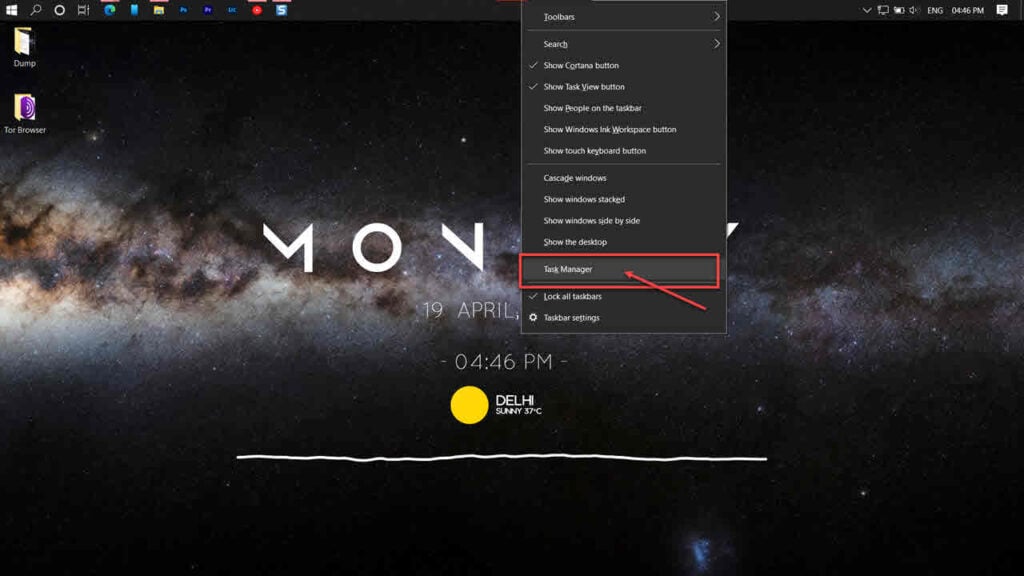
Step 2: In the Processes tab, scroll down and find all instances of the EA app. Right-click on each EA-associated process and then select End Task.

Close the Task Manager, refresh your system, and then relaunch the game. This should fix the problem of ‘Origin not installed’ while playing FIFA.
Also read: How to fix Capcut network error on PC? 4 Quick Fixes
Enable Background Service in the EA app
The Background Service in the EA app runs even when the app is not active and helps manage various background tasks, such as updating the app. If these services are disabled, FIFA may not detect the EA app.
Here are the steps that you should follow:
Step 1: Open the EA app and then select your profile icon at the top.

Step 2: Select Settings.

Step 3: Navigate to the Application section.

Step 4: Ensure the Enable background services option is turned on.

This process doesn’t take much of your PC’s CPU and can be left activated. Once you’re done, restart the EA app and try relaunching the game.
Also read: Wallpaper Engine not working error: 4 Quick Fixes
Launch FIFA with the EA app open
This method is specifically for those who run FIFA through Steam, Xbox Game Pass, or another launcher. Usually, the game would run just fine. However, if the EA app isn’t running in the background, you may face the ‘Origin not installed’ error.

Open the EA app and sign in to your account. Then, press the minimise button at the top right of the app window and keep the app minimised to the taskbar.
After that, open Steam/Xbox Game Pass and launch FIFA and the Origin not installed error should be resolved.
Also read: How to revert Windows 11 24H2 to 23H2?
Uninstall and reinstall the FIFA app
The above steps solve the ‘Origin not installed’ error while playing FIFA. However, if you still notice the error, try uninstalling and reinstalling the FIFA app.
Step 1: Press the Windows key + X and select Installed apps. Or head to Settings > Apps > Installed apps.
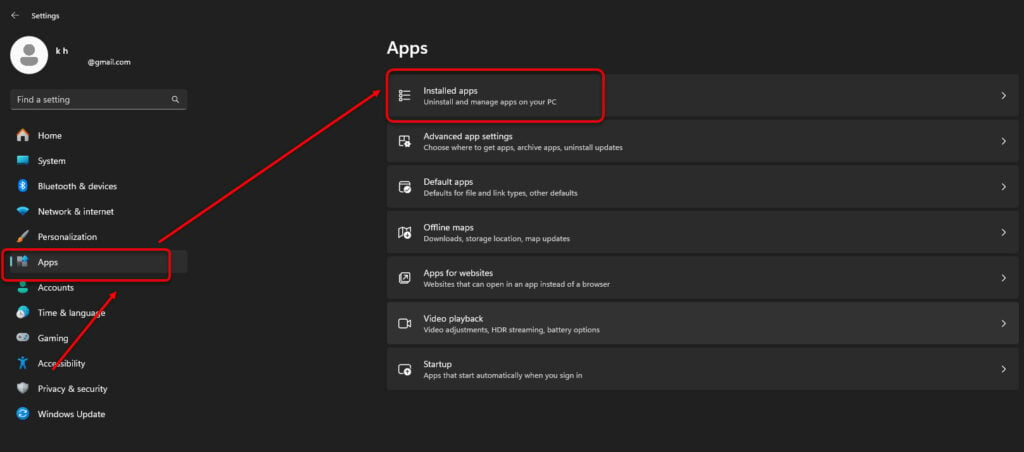
Step 2: Scroll down to find EA app. Press the three-dot button and then select Uninstall.

Step 3: Click on Uninstall again.

Step 4: After uninstalling the FIFA app it is time to reinstall it. Download the latest EA app from the official EA website and install it.

Also read: Fix: MSI Center not working
Install Origin as a workaround
Since EA no longer offers Origin, downloading it can be tricky. However, if nothing else works, you may attempt to install it from any third-party sources like Softonic or UpToDown.

Before proceeding, note that downloading software from third-party sites carries risks. Please proceed with caution and avoid unreliable sources.
Also read: How to uninstall Logitech G Hub?Also read:
Perform a clean boot
While performing a clean boot, you ensure that the system starts only with a few drivers and startup programs. A clean boot ensures no conflicting background services interfere with FIFA and errors like ‘Origin not found’ are automatically solved.
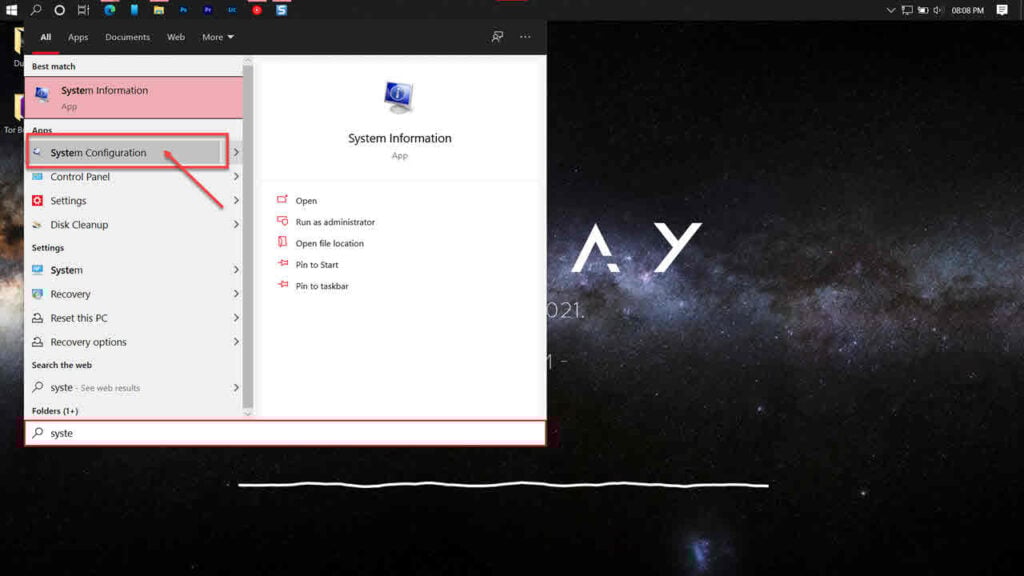
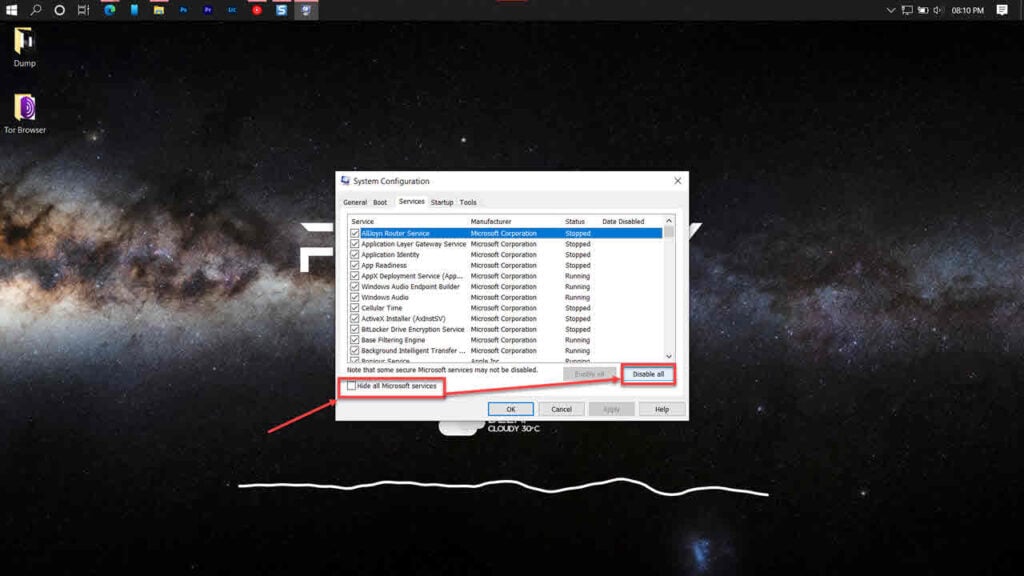
Step 1: Press the Windows key + R, type msconfig, and hit Enter. Or head to System Configuration settings from the Start menu.
Step 2: Head over to the Services tab.
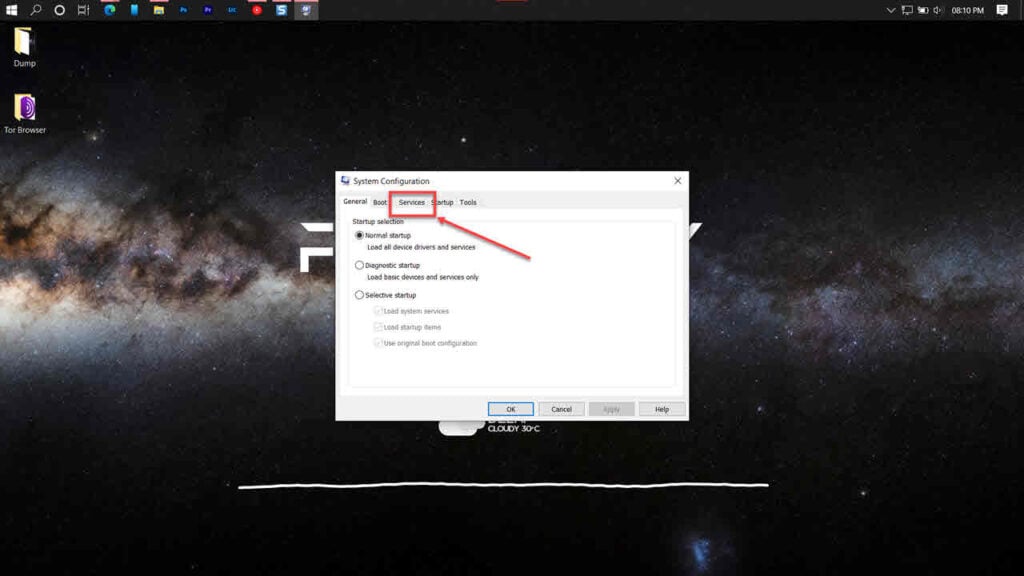
Step 3: Uncheck Hide all Microsoft Services and select Disable All.
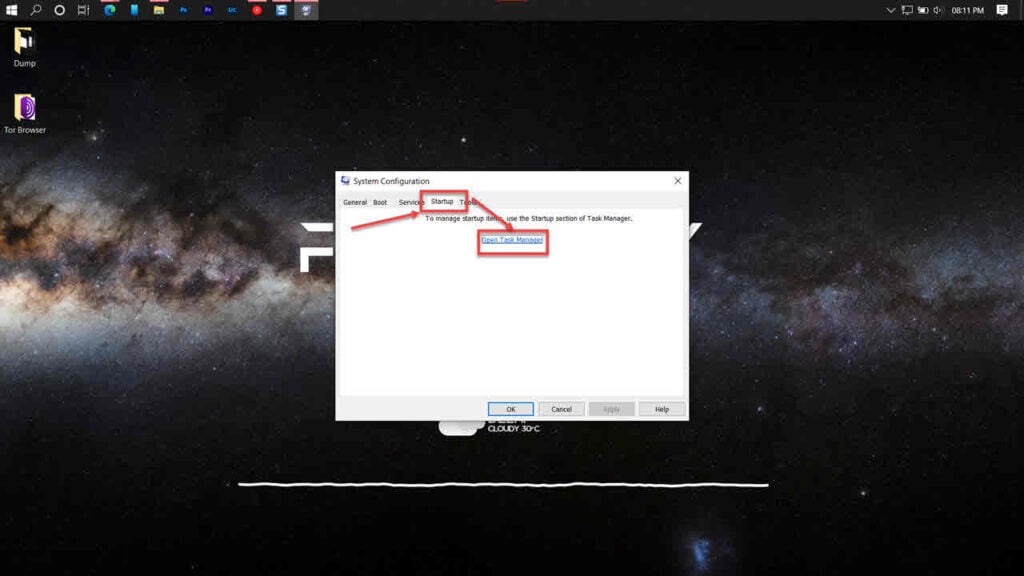
Step 4: Switch to the Startup tab and click Open Task Manager.
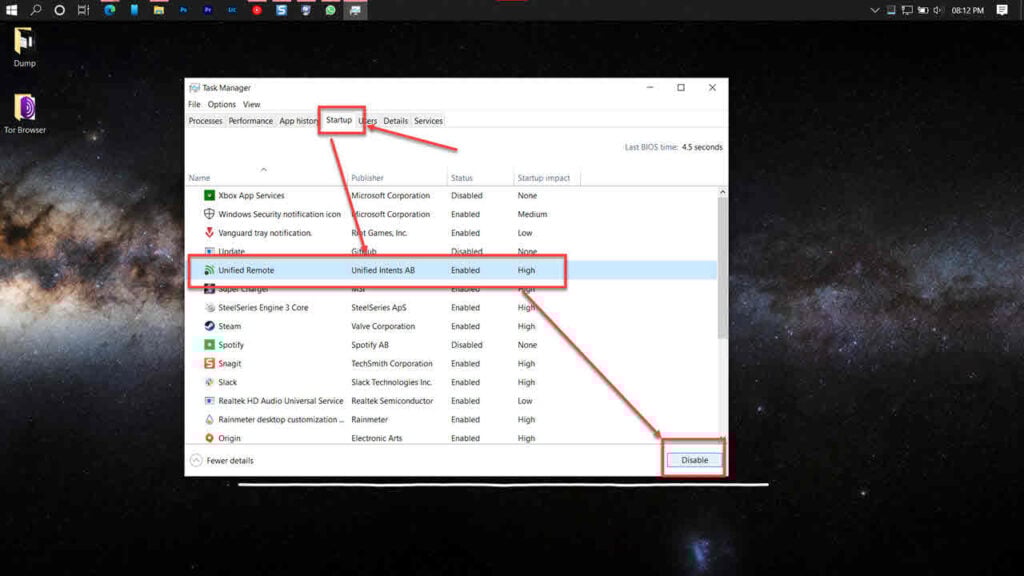
Step 5: Disable all startup apps by right-clicking each and selecting Disable.
Now, restart the PC and try booting FIFA again.
By following these troubleshooting steps, you should be able to fix the ‘Origin not installed’ error in FIFA quite easily. If you found this article useful, share this with your friends who are facing the same problem.




