
When you try to copy a file from your PC to a network folder, you might encounter an error message stating, ‘Not enough quota is available to process this command’. Sometimes, this error message may occur and show the code 0x80070718 following the error message. This error usually occurs on Windows 7, Windows 8/8.1, and Windows 10.
This article discusses the causes of the Not enough quota available to process this command error message and a few ways to fix it.
Causes of Not enough quota error message
Below, we have mentioned a few possible reasons that might be causing the Not enough quota is available to process this command error message.
- Conflicting background apps.
- Low disk usage limit.
- The paging file size is small.
Also read: How to fix Windows System Error 5?
How to fix the issue?
If you encounter the Not enough quota available to process this command error message while copying a file from the PC to the network folder, we have explained a few methods below that might help you fix the issue.
Close the Apps
If too many apps are running on your PC, they will consume the system resources, so the best and simplest option to resolve this issue is to close those applications running on your PC and also make sure to close apps running in the background. To find and close the background apps, follow the steps below.
Step 1: Right-click on the Taskbar, and then in the dropdown menu, click on the Task Manager to open it.
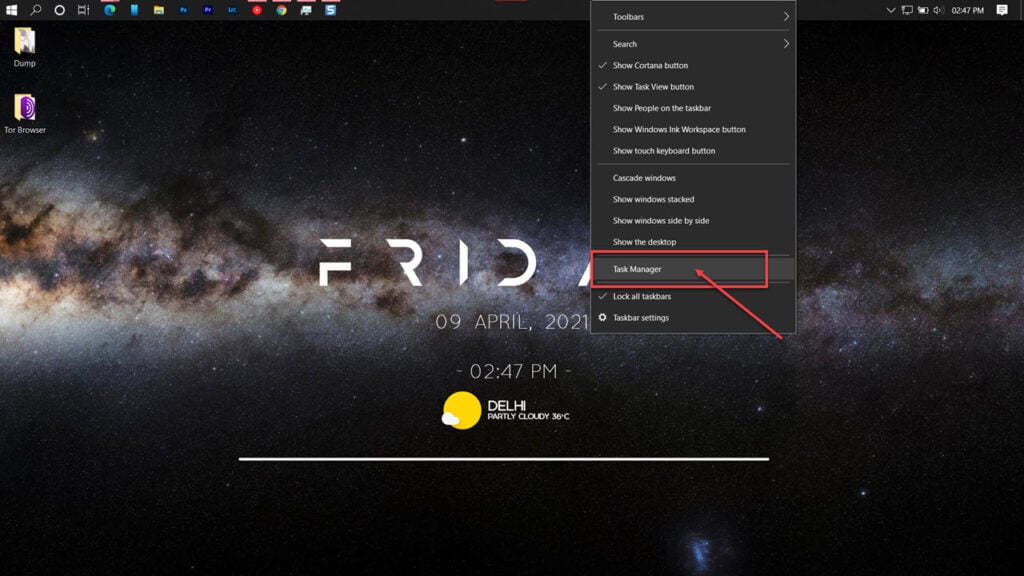
Step 2: In the Processes tab, you will find the Apps section at the top, right-click on the app you want to close and then in the dropdown menu, click on the End task.

Also read: Fix: This is not a valid Win32 application
Increase the Disk Usage Limit
Low disk usage limit can be another factor that might cause Not enough quota is available to process this command error message; increasing the disk usage limit might fix the e error for you. To increase the disk usage limit, follow the steps below.
Step 1: Type Control Panel in the Windows search and click on the first result to open it.

Step 2: Click on the View by and then select the Small icons option.

Step 3: Click on the Sync Center option.

Step 4: In the sidebar, click on the Manage offline files.

Step 5: In the offline files window, click the Disk Usage tab and then the Change Limits button.

Step 6: Now, drag the sliders for both the Maximum amount of space all offline files can use, and the Maximum amount of space temporary files can use and then click on the OK button.

Change the Paging File Size
If the paging file size in your PC’s virtual memory is set to small, then it might cause Not enough quota is available to process this command error message; changing the paging file size might fix the issue. To change the paging file size, follow the steps below.
Step 1: Right-click on the Taskbar, and then in the dropdown menu, click on the Task Manager to open it.

Step 2: Click on the View by and then select the Small icons option.

Step 3: Click on the System option.

Step 4: In the About system page, click on the Advanced system settings available in Related settings on the right side of the screen.

Step 5: In the system properties, click on the Advanced tab and then click on the Settings button available under the Performance section

Step 6: In the Performance Options window, click on the Advanced tab and then the Change button.

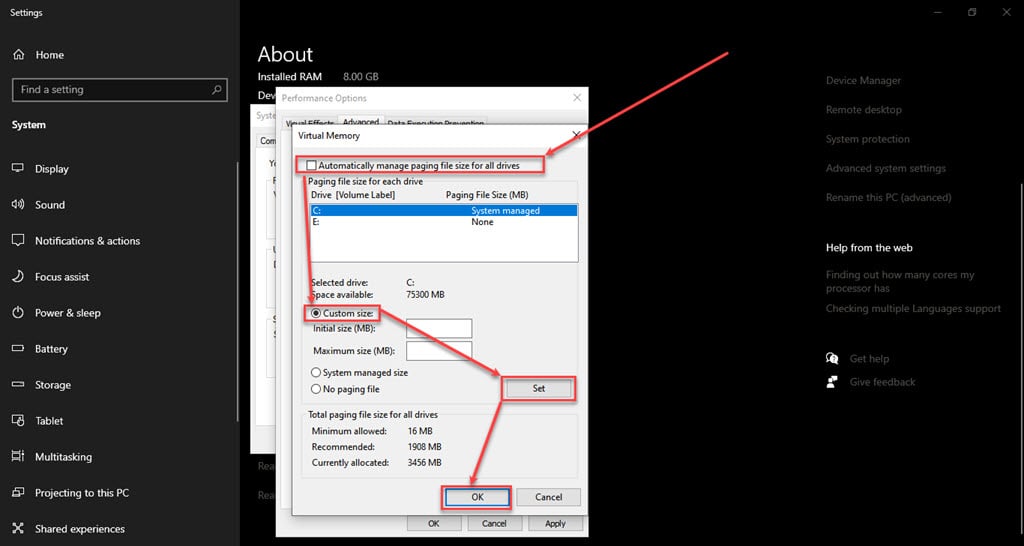
Step 7: In the Virtual memory window, uncheck the Automatically manage paging file size for all drives, then click on the Custom size and enter the Initial size. You can type the recommended size shown at the bottom and then type the Maximum size more than the Initial size; after that, click on the Set button and then the OK button.
Also read: Fix: The group policy client service failed to sign in





