
Outlook is a popular email management service where you can enter multiple emails and have a quick look at each one of them on a single platform. However, many people have reported a situation where Outlook shows a disconnected status.
A disconnected status means that Outlook cannot connect to the internet and therefore it cannot refresh and show the emails. Also, you cannot send an email when this happens. The issue can be quite frustrating especially when you have an important email to send to a client.
Fortunately, there are a few ways to fix this issue and restore your productivity. In this article, we’ll explain why is Outlook showing disconnected status and how to fix it.
Why does Outlook get disconnected?
There are several possible reasons why Outlook may get disconnected from the email server. Some of the most common ones are as follows:
- You are working in an offline mode on Outlook. Although in this mode, you can work on Outlook the email syncing is stopped.
- You have a weak or unstable internet connection.
- The email server is having problems causing it to disconnect rapidly.
- Your Outlook profile is misconfigured causing the platform to behave erratically.
- Sometimes, tools like Windows Defender or Windows Firewall may stop Outlook from working properly.
Also read: How to set “out of office” in the Outlook app?
How to fix Outlook when it is disconnected?
Depending on the cause of the problem, there are several different methods you can try to fix Outlook when it is disconnected issue.
Fix your internet and WiFi
The first step that you take is to check your internet and WiFi connection. Try connecting another device to the same network to gauge the network connectivity. If the device is working properly, the problem is with the device or Outlook and head to the other steps below.
However, if the other device is also not working properly, there is a problem with the internet connection.
Check out our article on what to do if the internet isn’t working for a step-by-step analysis of how to fix our internet.
Similarly, head to the article on how to fix your WiFi for troubleshooting your WiFi issues.
Disable the offline mode on Outlook
As explained earlier, the offline mode of Outlook stops the platform from connecting to the email servers automatically thereby restricting new emails from appearing.
So, disabling the offline mode on Outlook seems a pretty viable option to fix the disconnected Outlook issue.

Head to Send/Receive and then click on Work Offline to enable or disable the Work Offline mode on Outlook.
Try the web version of Outlook
If the Outlook app is disconnected, you can try the web version of Outlook to check if it works.
Sometimes, the web version works perfectly while the app seems to be showing errors.
Head to this link to sign in and use Outlook on your browser.
Try to open Outlook in Safe Mode
You can open Outlook in Safe Mode if it is showing a disconnected status while working normally. Usually, we open apps in Safe Mode to conduct thorough diagnostics on what is causing the application to behave abnormally.
Step 1: Right-click on the start menu button and then select Run. You can also press the Windows key + R.

Step 2: In the Run box, type Outlook.exe/safe and hit Enter.

Create a new Outlook profile
You can also try to create a new Outlook profile to fix the Outlook disconnected issue.
Step 1: Head to the local Outlook directory and delete the profile. By default, the profile is located at this address:
C:\Users\[Your username here]\AppData\Local\Microsoft\Outlook
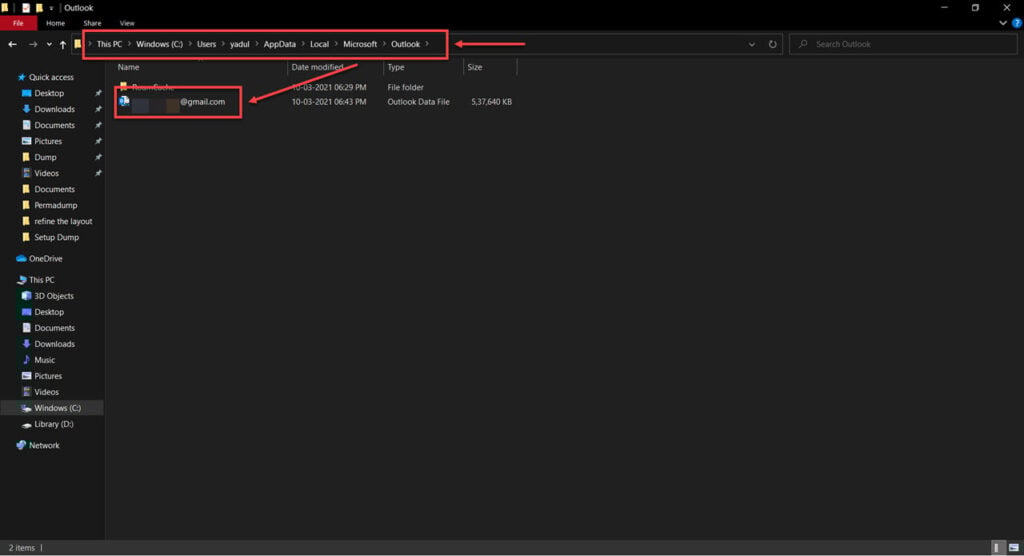
Step 2: Open Outlook and click on the File icon at the top.
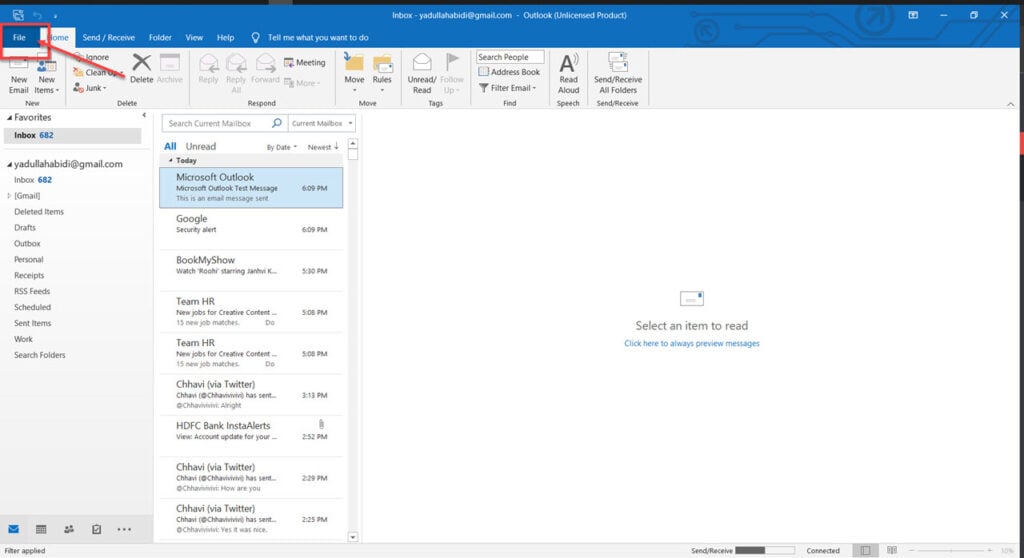
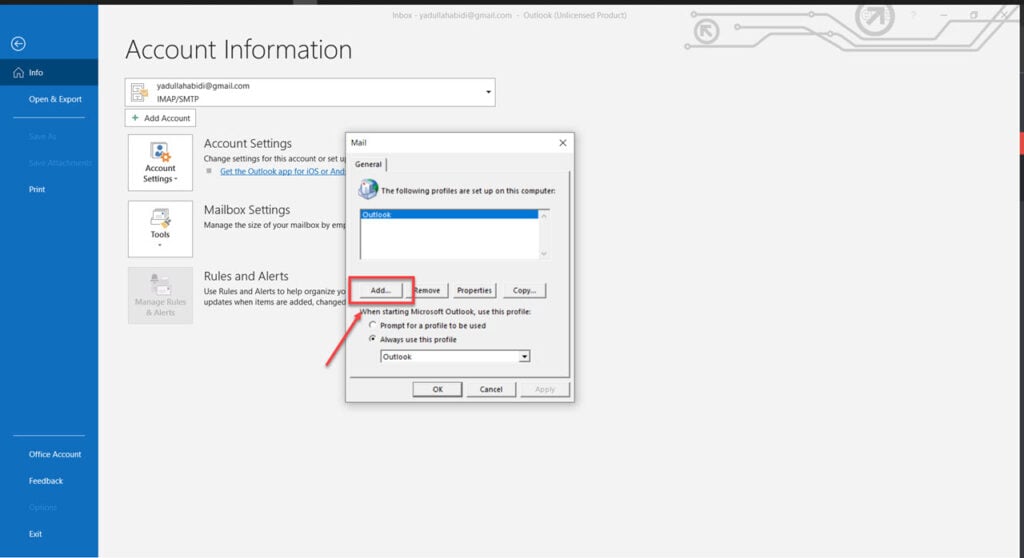
Step 3: Next, head to Account Settings and then select Manage Profiles from the drop-down menu.
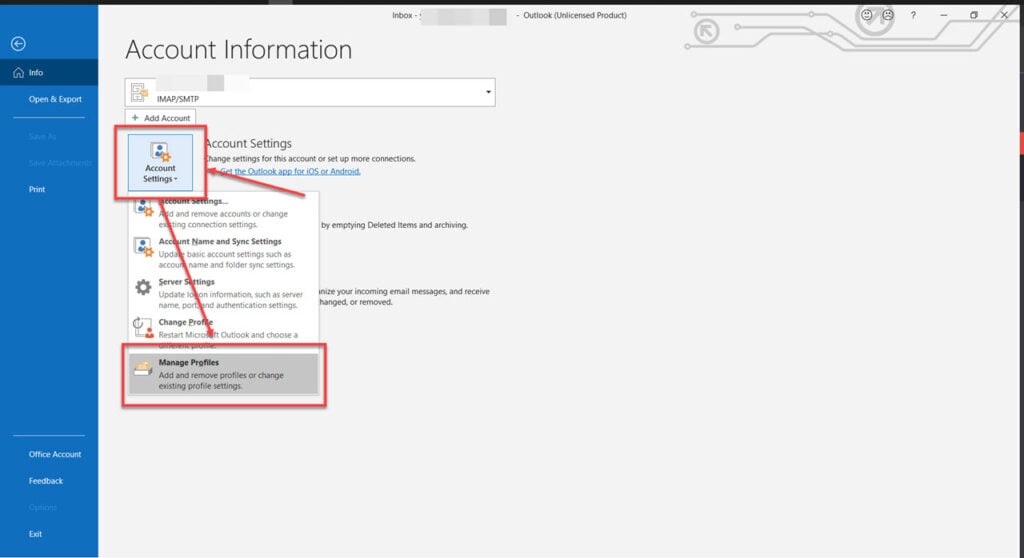
Step 4: Click on the Show Profiles icon under the Profiles section.
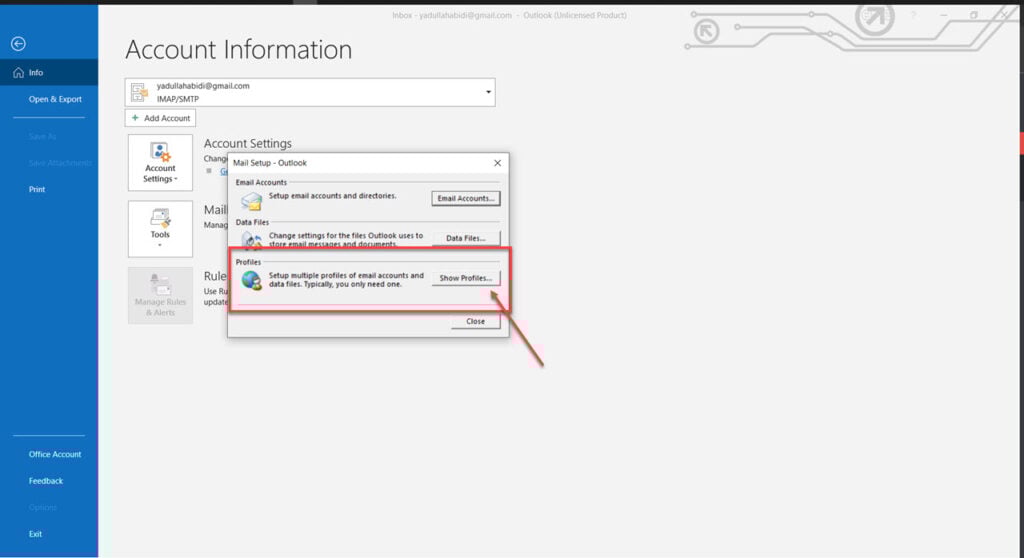
Step 5: Click on Add to add another email account.
Update Outlook
You can update the Outlook app on Windows to fix the Outlook disconnected issue. Here’s how to do this:
Step 1: Open Outlook and then click on File.
Step 2: Click on the Office Account option on the left panel and then select Update Options. From the drop-down menu, select Update Now.

Disable extensions on Outlook
Sometimes, misconfigured extensions can interfere with the normal functioning of the app causing several problems including, in this case, Outlook showing a disconnected status issue.
Here’s how to disable extensions on Outlook:
Step 1: Open Outlook and then click on File.
Step 2: Now, click on Options.

Step 3: Now, click on Add-ins and then Go…

Step 4: Select all extensions or the extensions that you want to remove and then click on Remove.

Repair Outlook
You can also try to repair Outlook and see if it fixes the issue. Windows has an in-built repair tool that you can activate for apps that do not run smoothly or show some errors.
Here’s how to do this:
Step 1: Press the Windows key + I to open Settings and then head to Apps > Installed Apps.
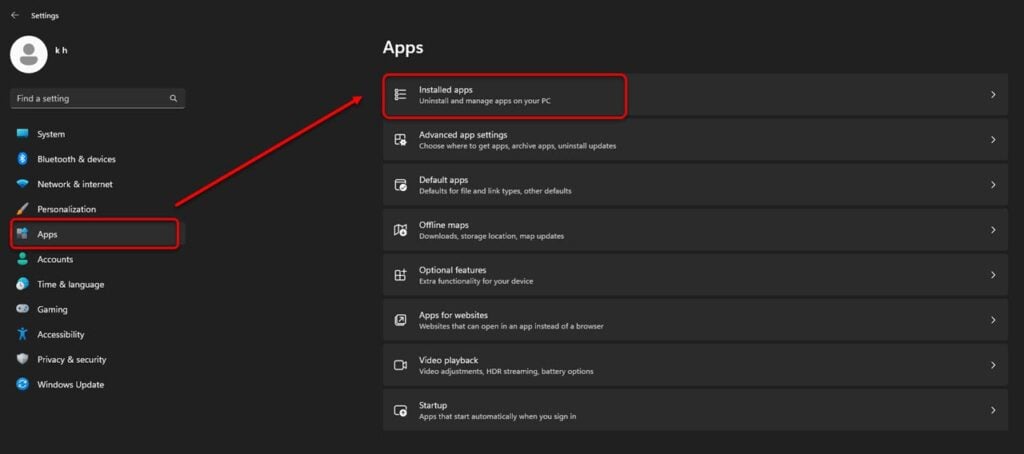
Step 2: Find Outlook and then click on the three-dot button. Select Advanced options from the drop-down menu.

Step 3: Click on Repair.

Reset Outlook
Finally, you can reset the Outlook app to erase all data and restore it to its original state. It is like factory settings but limited to one app.

Head to Settings > Apps > Installed Apps > Advanced options as we have explained in the previous heading. Now, click on Reset.
In conclusion, if the Outlook app on your Windows PC is showing a disconnected status, you should start by checking the internet connection, disabling the offline mode, and then go on as we have mentioned in the article. One step or the other will surely click and you will fix the error in a jiffy.


